The video plan is a storyboard for a music video: one scene for each section of the song, with what the camera sees, a mood and one camera move. From the scenes you pick, Heho then writes the prompts to take to AI image and video tools. The plan lives in the variant's release kit, on its Distribution tab, so each variant has its own.
1. Generate the release kit first
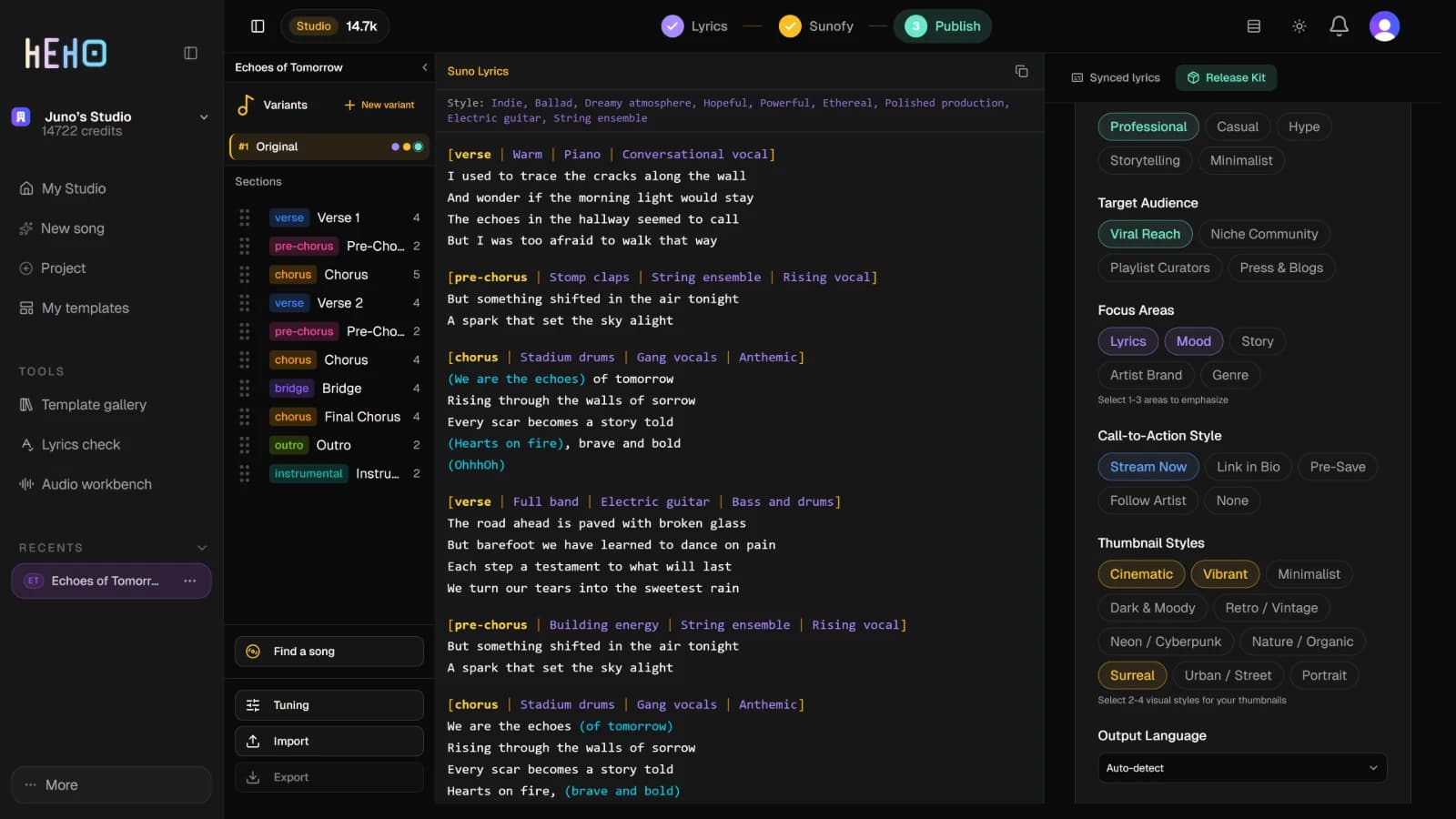
Open the song, press Publish, then Release Kit. If the variant has no kit yet, the setup card opens. Build a release kit for your song walks through it. The plan needs the kit to exist, but it does not read the kit's copy.
2. Generate the plan
Open the kit's Distribution tab. Under Track Description and Pitch, press Generate Video Plan.
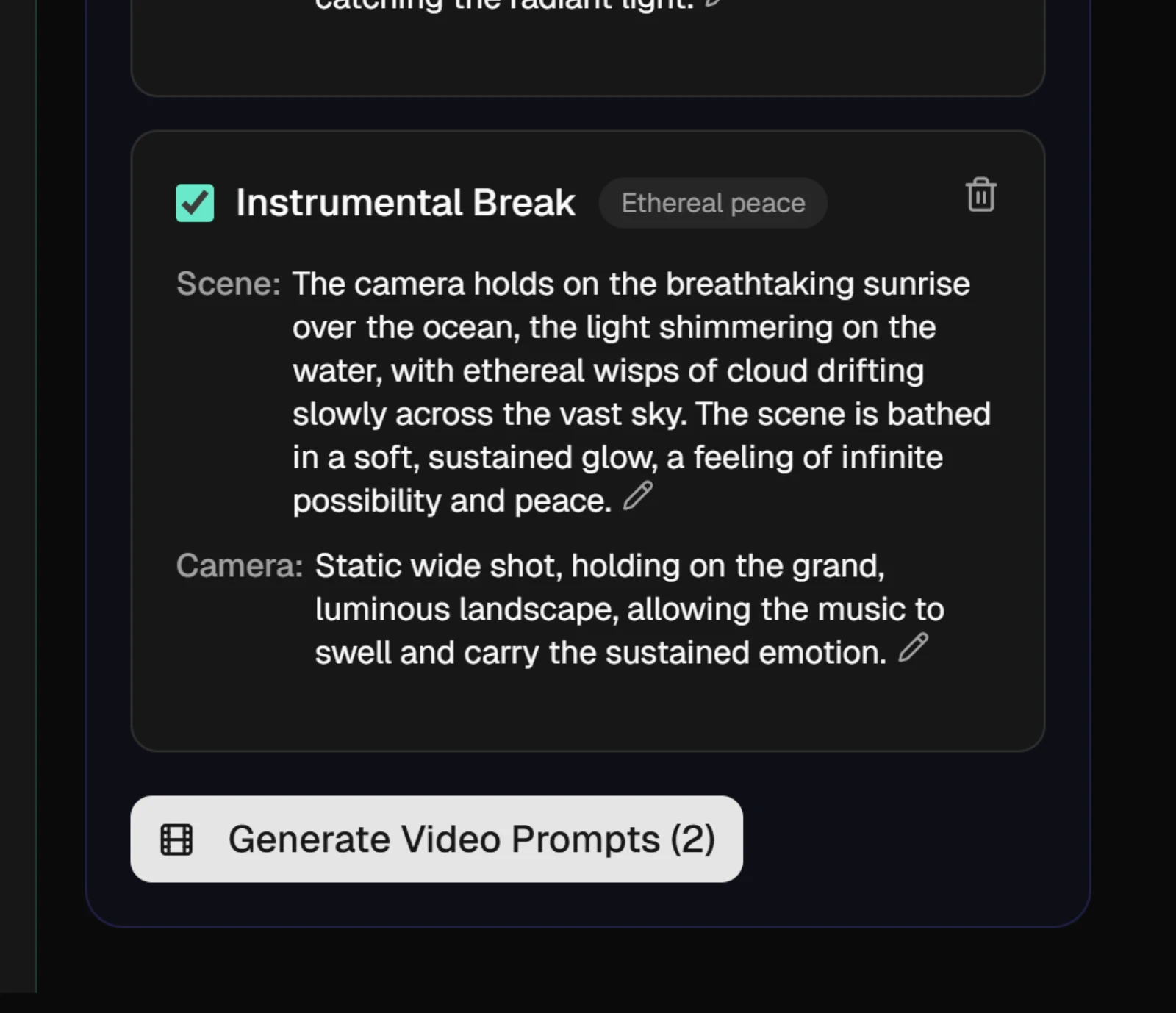
Heho reads the variant's sections and their lines, the song's title, artist, mood and theme, and its song-wide Suno tags, then writes one scene per section. Each scene card shows the section's name and a short mood, then:
- Scene: the setting, who and what is in it, and the colors, drawn from that section's lyrics.
- Camera: one camera movement.
3. Shape the storyboard
- The pencil at the end of the Scene or Camera text opens it for editing. The tick saves it, the cross cancels. The mood cannot be edited.
- The bin at the top right of a card deletes that scene at once, with no confirmation.
Your edits are saved with the kit. The prompts in the next step are written from the scenes as they read at that moment, so edit first.
4. Write the prompts
Tick the scenes you want prompts for, or tick Select All. Then press Generate Video Prompts. The number after it counts the ticked scenes, and one press writes prompts for all of them. Each of those scenes then shows two prompts:
- Start Frame Prompt describes the opening still: the place, the subject, the light, colors and textures, the lens and the mood.
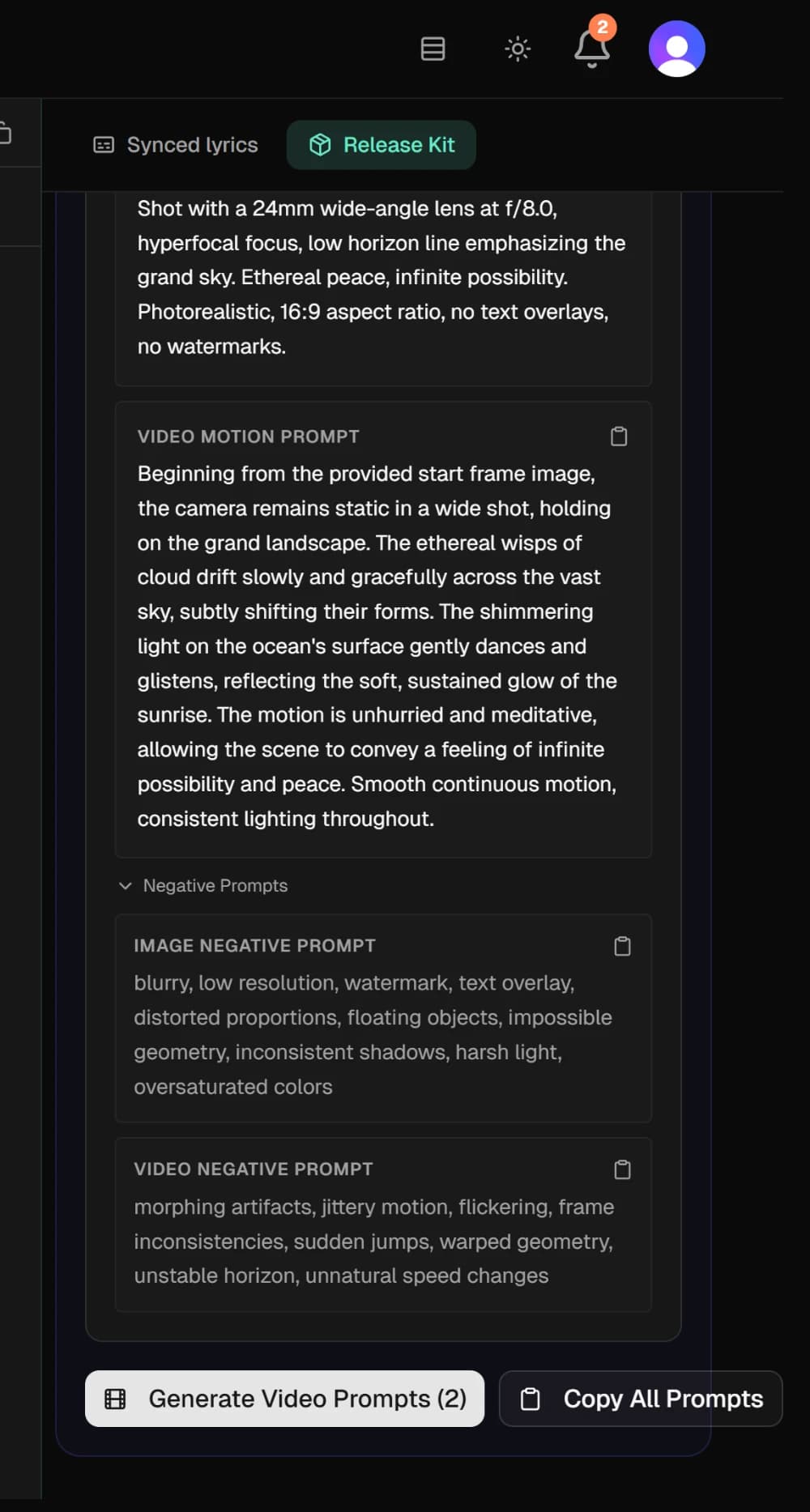
- Video Motion Prompt starts from that still and describes only what moves: one camera movement, what the subject does, and a pace that fits the section.
Negative Prompts under them opens an Image Negative Prompt and a Video Negative Prompt: lists of faults to avoid, for tools that accept one.
5. Take the prompts to your video tools
The copy icon beside each prompt copies it. Copy All Prompts copies every scene that has prompts in one block, section by section. It adds the negative prompts only for the scenes where you opened them.
The prompts are plain sentences, not written in any one tool's syntax. Make the start frame first with an image generator. Then give that image and the motion prompt to an image-to-video tool: the motion prompt assumes the tool already has the picture.
6. Redo one scene, or the whole plan
Once a scene has prompts, a circular arrow appears in its header. It opens a box for an optional instruction, and Regenerate writes new prompts for that scene alone. Regenerate All Scenes at the top of the plan writes a new storyboard.
WarningRegenerate All Scenes replaces every scene. Your edits and all the prompts are gone, and deleted scenes come back. Regenerate on the whole kit, in the bar above the tabs, writes a new kit with no video plan.
The plan, each press of Generate Video Prompts and each single-scene redo use AI credits, and on the free plan each one also uses one of the month's premium previews. Regenerate All Scenes counts as a new plan.