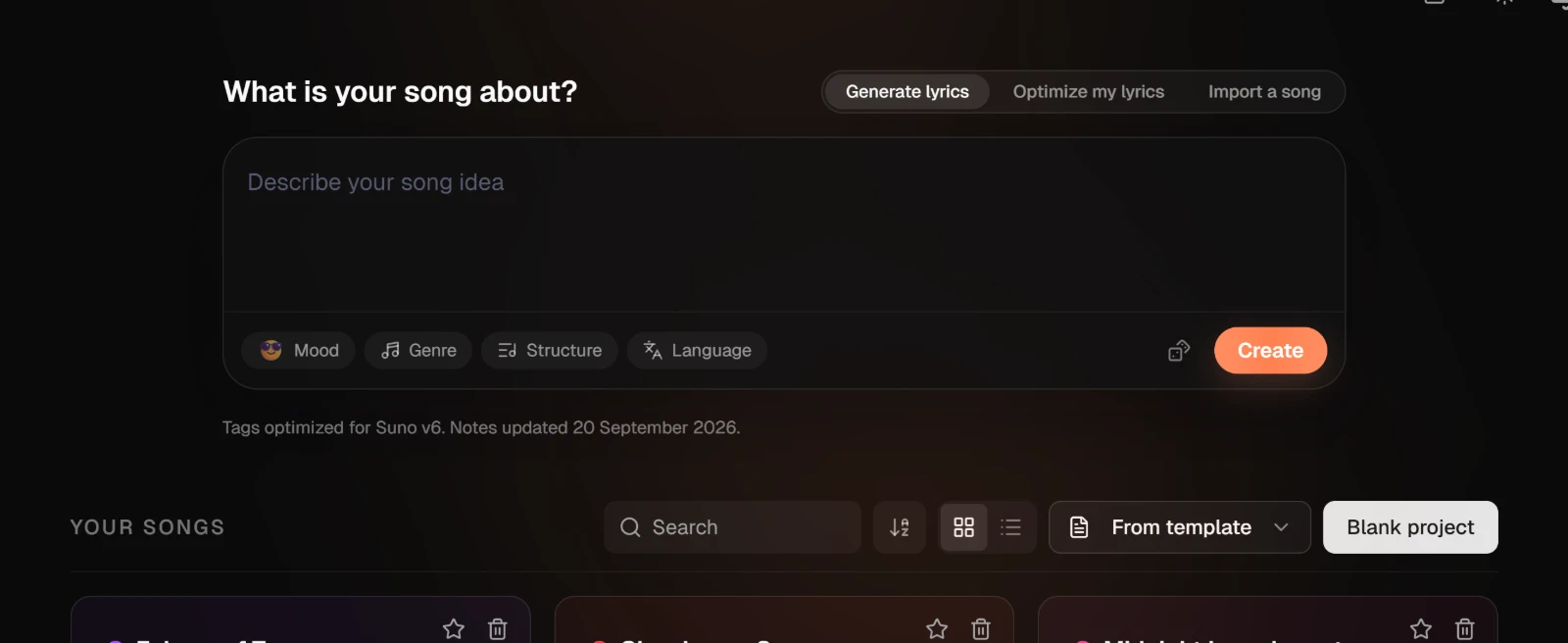
My Studio is where every song you start lands. The idea box sits at the top for the next song, and Your songs lists the rest under it. The controls on the right of the Your songs strip keep a long list manageable.
1. Open My Studio
Press My Studio at the top of the sidebar. Your songs start under the idea box, as a grid of cards.
2. Search your songs
Type in the search field on the right of the strip. It looks through song titles, variant names, section names and the lyrics themselves, so a line you half remember is enough to find the song. Clear the field to see everything again.

3. Change the order or the view
The icon next to the search sets the order: newest or oldest first, or by title in either direction. It shows a clock until you change it. Newest means the song you changed last, and your choice is saved to your account.
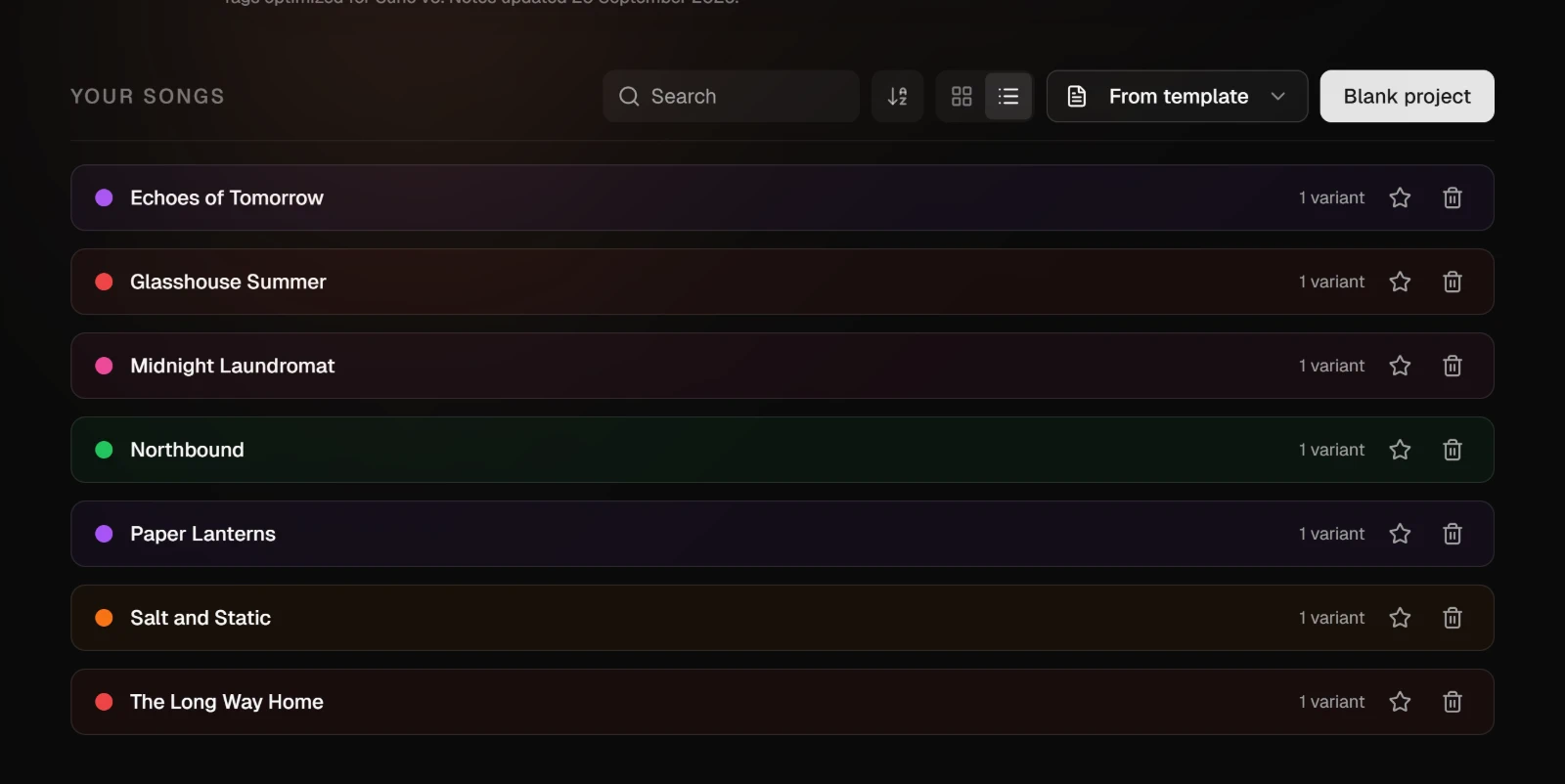
The two buttons after it switch between the grid and a compact list. The list is for this visit only; My Studio opens on the grid again next time. Starred songs stay at the top whatever the order.
4. Star and color a song
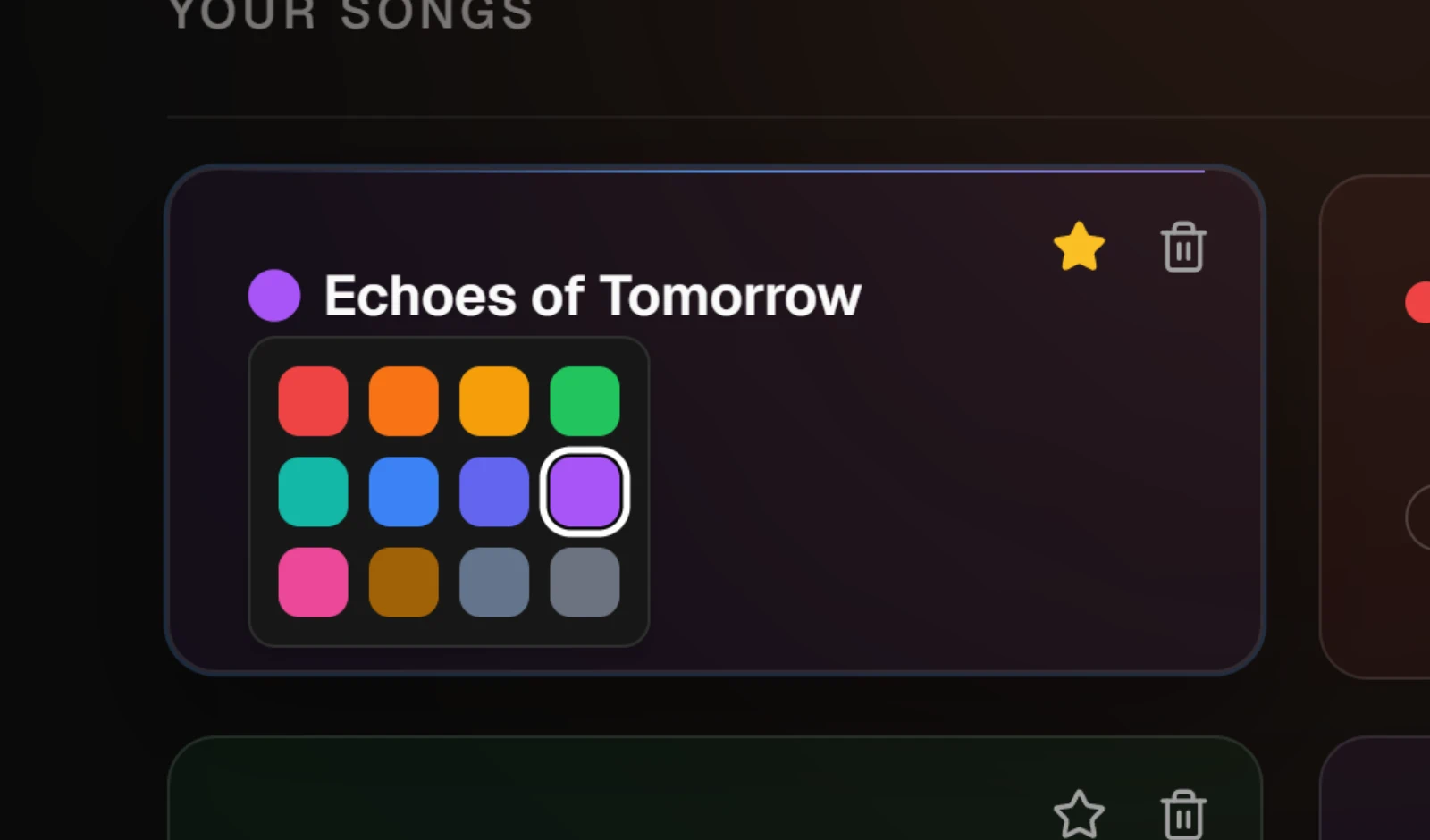
The star at the top right of a card pins the song to the top of the list. Press it again to unpin.
The small colored square beside the title opens a palette. The color you pick tints the whole card.
5. Open a variant from its card
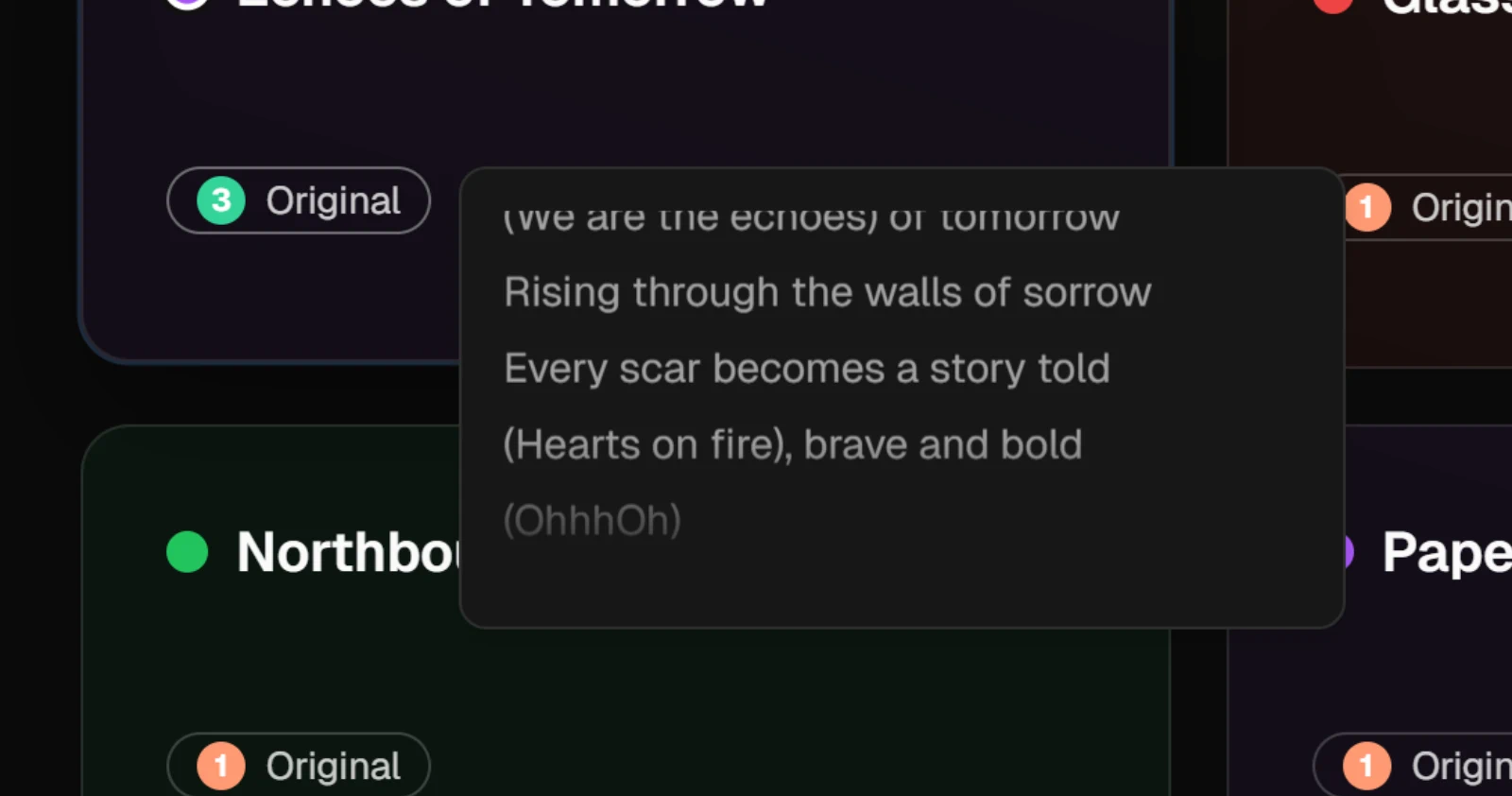
Each variant of a song has a chip under the title. The number on the chip is how far that variant has come: 1 for Lyrics, 2 for Sunofy, 3 for Publish. Click a chip to open that variant in the studio, on the step you were last working on.
Rest the pointer on a chip for a moment and the song's chorus scrolls past beside it, so you can check which song it is without opening it.
WarningThe trash icon on a card deletes the song with every section and line in it, after one confirmation. It cannot be undone.
TipThe rows icon in the header switches the whole app between Default and Comfortable density. The setting stays in this browser.
The two buttons at the right end of the strip start a song from one of your templates or from a blank page.