A template is the shape of a song: its sections in order, each section's Suno tags and rhyme pattern, and the tags for the whole song. Heho has two kinds. The Template gallery holds Heho's own, which anyone can open and change. My templates holds the ones you save, and a template saved from one of your songs keeps its words too.
1. Open a template from the gallery
Press Template gallery under Tools in the sidebar. The same gallery is public at heho.ai/templates, where you can browse without an account.
Search by name, genre, mood, tag or section header, or narrow the list with All genres, All moods and Any length. Click a card to open its draft.
2. Shape the draft
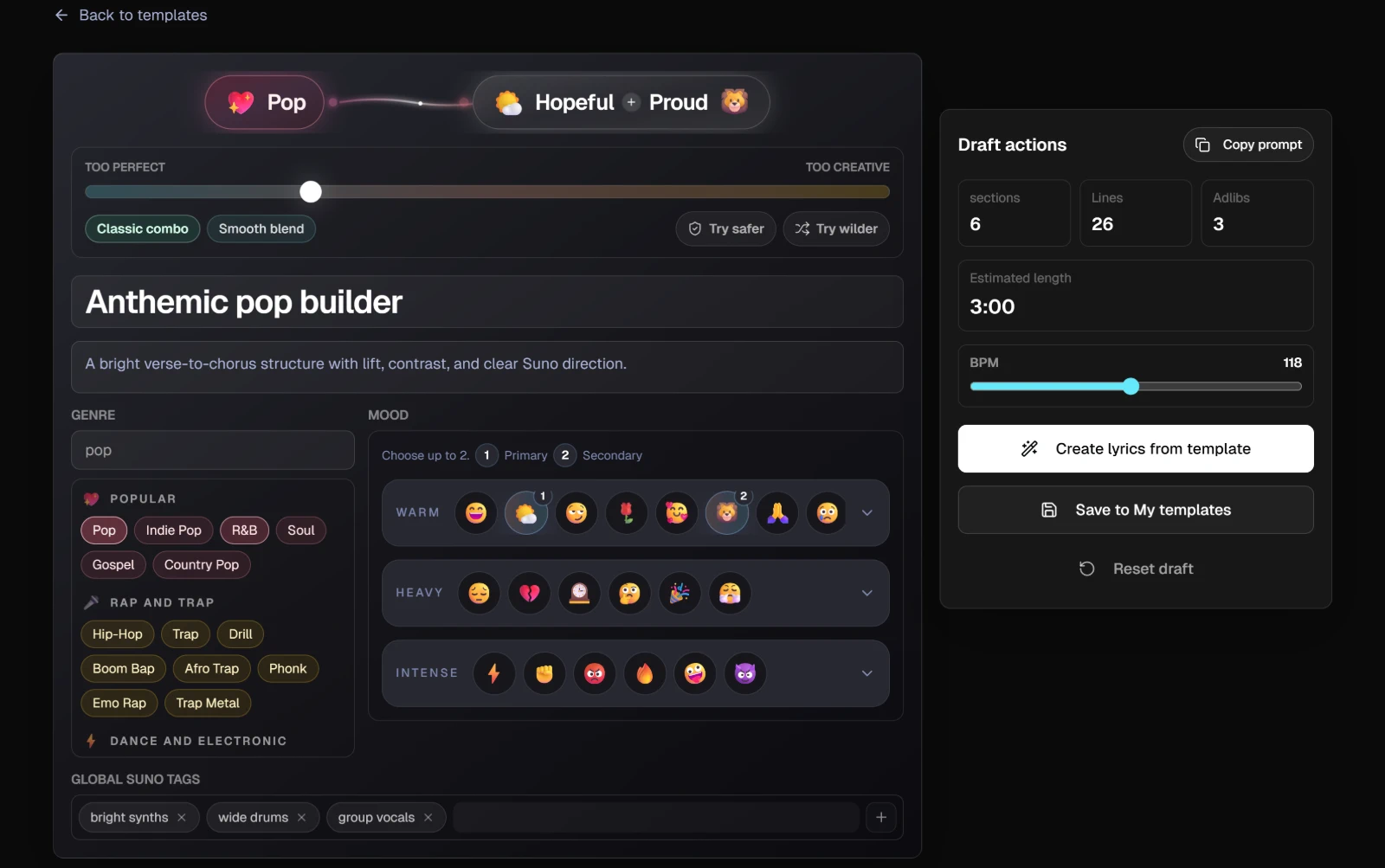
The draft is yours to change. At the top sit its title and description, Genre, Mood and Global Suno tags. Each section card in the Timeline sets its header and tags, its rhyme letters, Lines, Avg syllables and Adlibs. The + buttons in the Timeline (Add section) insert a section where you want it. Copy a section with its copy icon, then press Paste here on another card to replace that card with it, or Clone copied between two cards to add it there.
The Draft actions panel counts the sections, Lines and Adlibs, shows the Estimated length, and holds the BPM slider. Reset draft puts the template back the way Heho wrote it.
NoteYour changes stay in this browser tab for up to a day, one template at a time. Opening another template's draft drops them, so save a version you want to keep (step 3).
3. Use the draft
Three buttons take the draft out of the gallery. Signed out, Copy prompt and Save to My templates ask you to sign up first, and so does Generate lyrics in the dialog. Your draft is kept. Generating and saving then carry on by themselves; Copy prompt needs one more press.
- Copy prompt copies the draft as a text prompt: genre, mood, global tags, tempo, and for each section its lines, syllables, rhyme, ad-libs and tags.
- Create lyrics from template opens Generate lyrics from this template. Pick the Lyrics language, add a Language style or a Custom instruction if you like, and press Generate lyrics. Heho makes a new song with the draft's sections and tags, opens it in the studio, and writes the lyrics into it in the background.
- Save to My templates adds the draft to My templates without writing any lyrics. Its lines stay empty, ready to fill.
Each plan can generate lyrics for a template up to a certain size. When the draft is bigger than yours allows, the dialog says so and compares the draft's sections, lines and syllables with each plan. Shorten the draft, or press Upgrade to Pro: the draft stays saved and you come back to it after checkout.
Generating lyrics uses AI credits on every plan. It does not use the free plan's premium previews.
4. Save one of your songs as a template
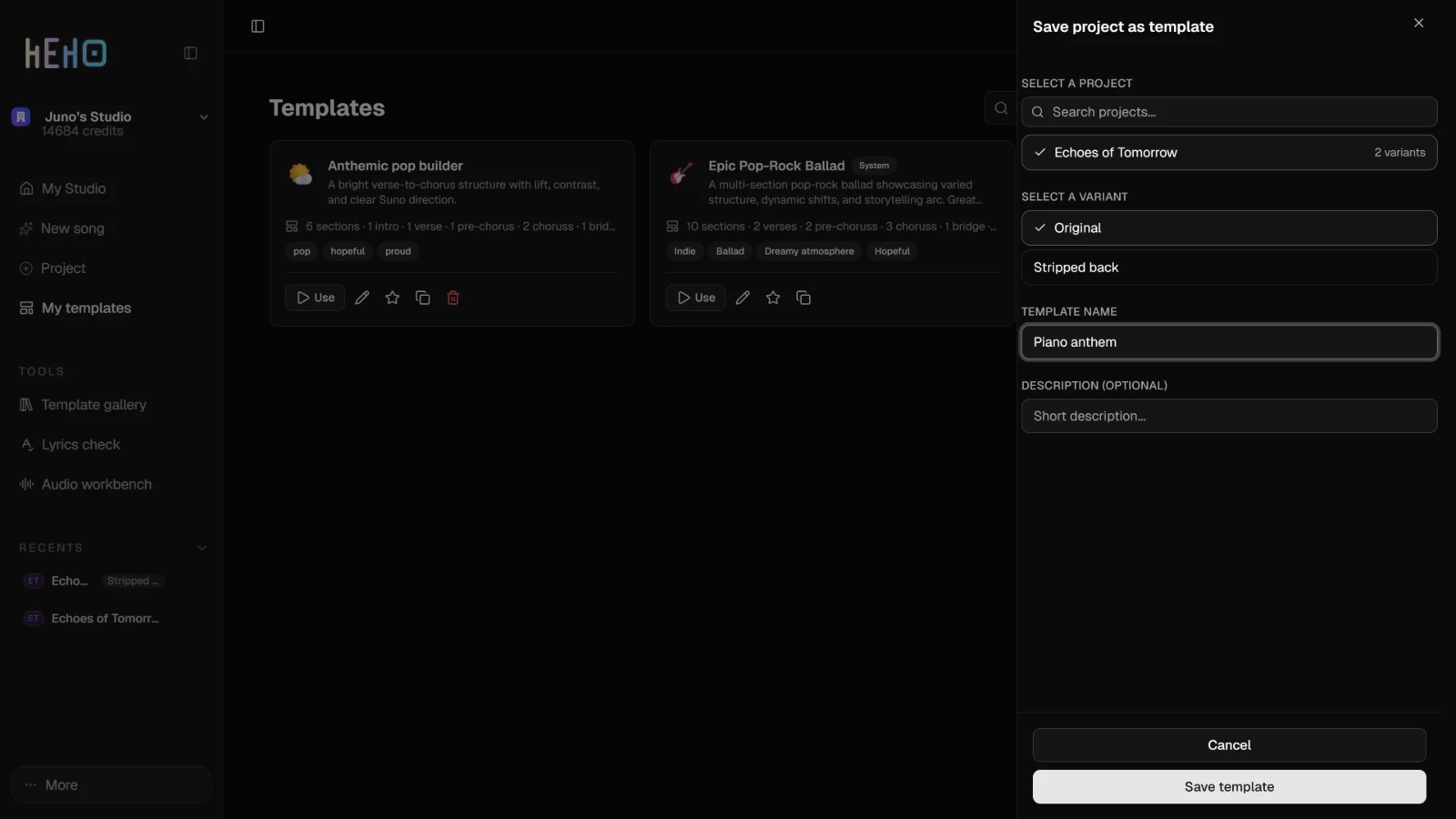
Press My templates in the sidebar, then Save from project. In Save project as template, pick the song under Select a project, and its variant under Select a variant if it has more than one. The Template name starts as the song's title. Add a Description (optional) and press Save template.
The template keeps that variant's sections with their lines, rhyme letters and Suno tags, the song-wide Suno tags, and the song's writing settings: language, mood, theme, tone, words to use or avoid, and extra guidelines.
5. Start a song from one of your templates
Two places open the same sheet, Create from template:
- Use on a card in My templates.
- From template on the Your songs strip in My Studio. It lists your templates with a search box and a star on each, and it appears once you have at least one template.

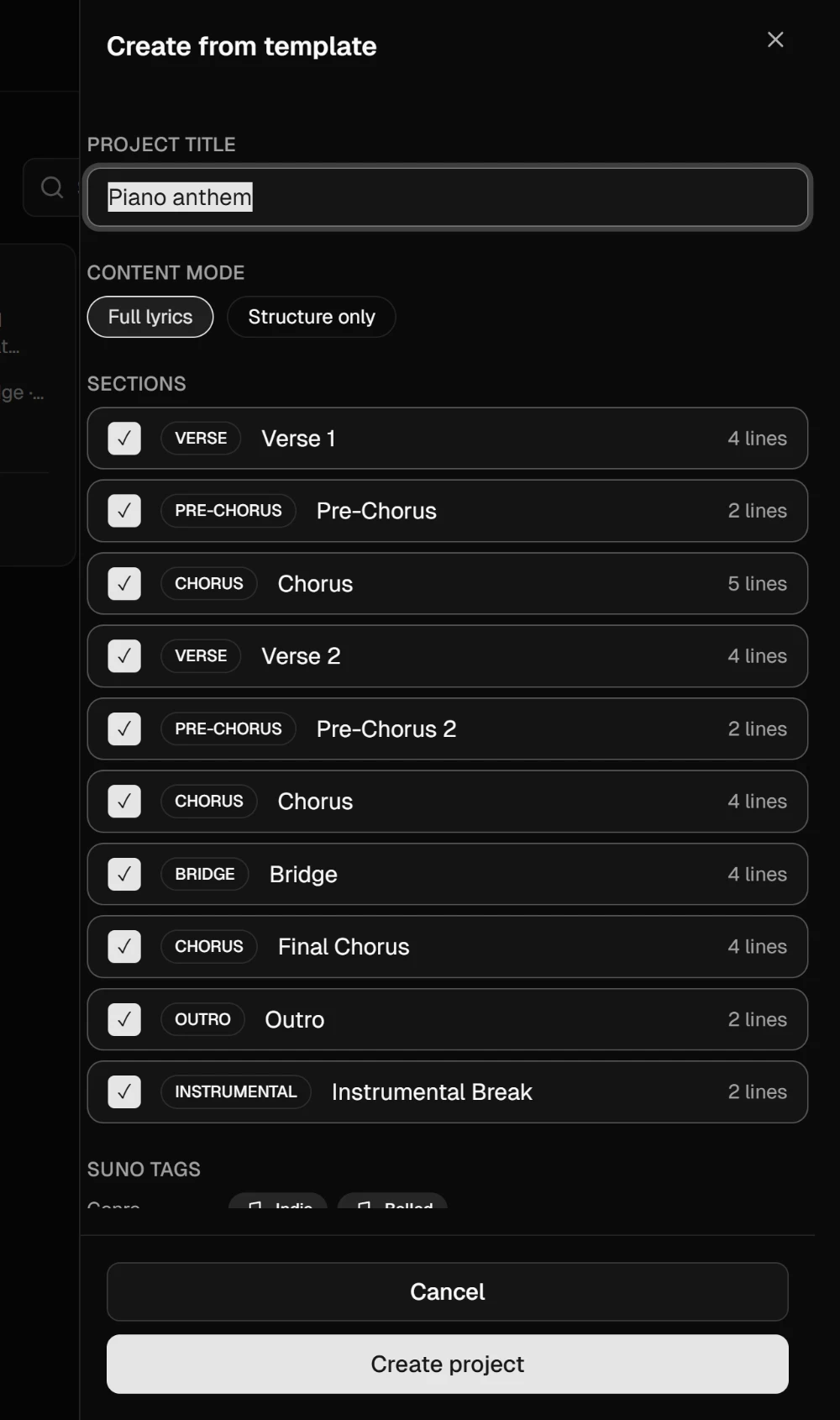
In the sheet, set the Project title and choose the Content mode. Full lyrics copies the template's words, and Structure only makes the same sections with empty lines. Click a section under Sections to leave it out; at least one must stay. Suno tags lists the tags the song starts with. Press Create project and the new song opens in the studio.
Starting a song from one of your templates runs no AI and uses no credits.
6. Keep My templates in order
My templates lists your favorites first, then the rest from A to Z. The search box matches names, descriptions and section names. Each card has Use and four icons:
- Rename, the pencil. Enter saves, Esc cancels.
- Favorite, the star.
- Duplicate, which adds a copy with "(copy)" after its name.
- Delete, the bin, after a Delete template? confirmation. It cannot be undone.
A new workspace starts with one template, marked System: the one its sample song was made from. It has no bin, so it stays. Manage templates... at the foot of the From template list opens the same actions in a side panel.
NoteYour templates are private. They are kept with your workspace, like your songs, and never appear in the public gallery.