The idea box is the field at the top of My Studio. You describe a song in a sentence, press Create, and a few moments later the song is written, tagged for Suno and open on the Sunofy tab, ready to copy. Everything under the field is optional.
1. Describe your song
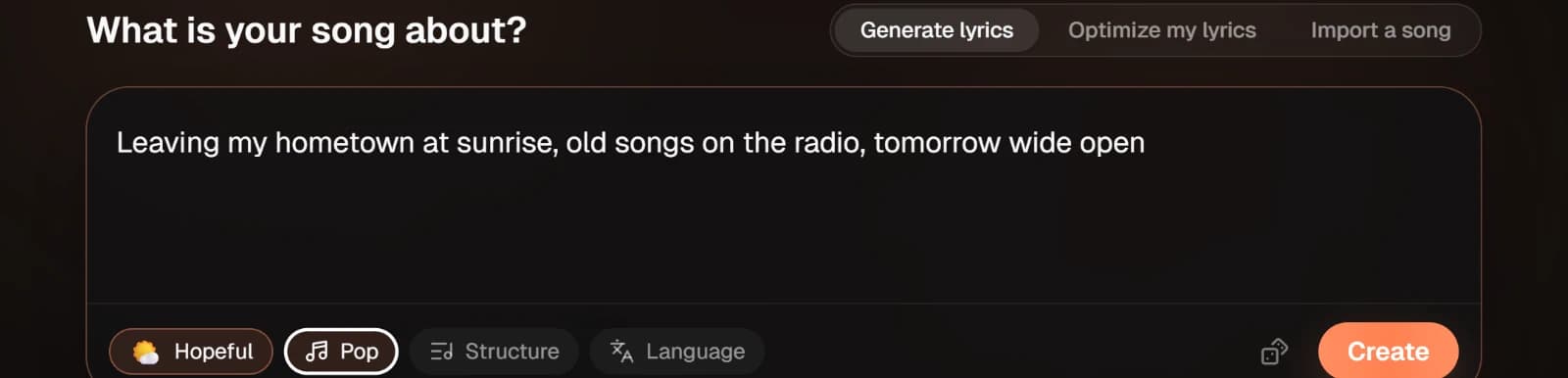
The box asks "What is your song about?" Answer in one sentence: who is singing, and what happened to them.
If the field is empty and you have no songs of your own yet, Try one offers three ideas to start from. The dice button, Suggest an idea, fills the field with a random one.
2. Set a mood or a genre, if you want to
Four chips sit along the foot of the field: Mood, Genre, Structure and Language. Each one shows its own name until it is used, then shows your choice instead.
- Mood takes up to two moods.
- Genre is the strongest signal Suno reads. Pick one, choose Something else to type your own, or leave it to Let the AI pick.
- Structure is Auto, Standard, Short or Long. Auto is a full song with room for an instrumental.
- Language reads the language from what you typed. Set it when you want the lyrics in another one.
Name a genre or a mood in your sentence and the chip picks it up by itself.

NoteSuno refuses artist names in its style field. If your idea names an artist, a line under the box says so, and the sound goes in as a description instead of the name.
3. Press Create
The button changes to "Working on it..." and the new song opens in the studio. Heho writes the lyrics first, then tags every section for Suno. A card over the studio says which of the two it is doing.
The song is named from its chorus once the lyrics are in.
4. Check the song on Sunofy
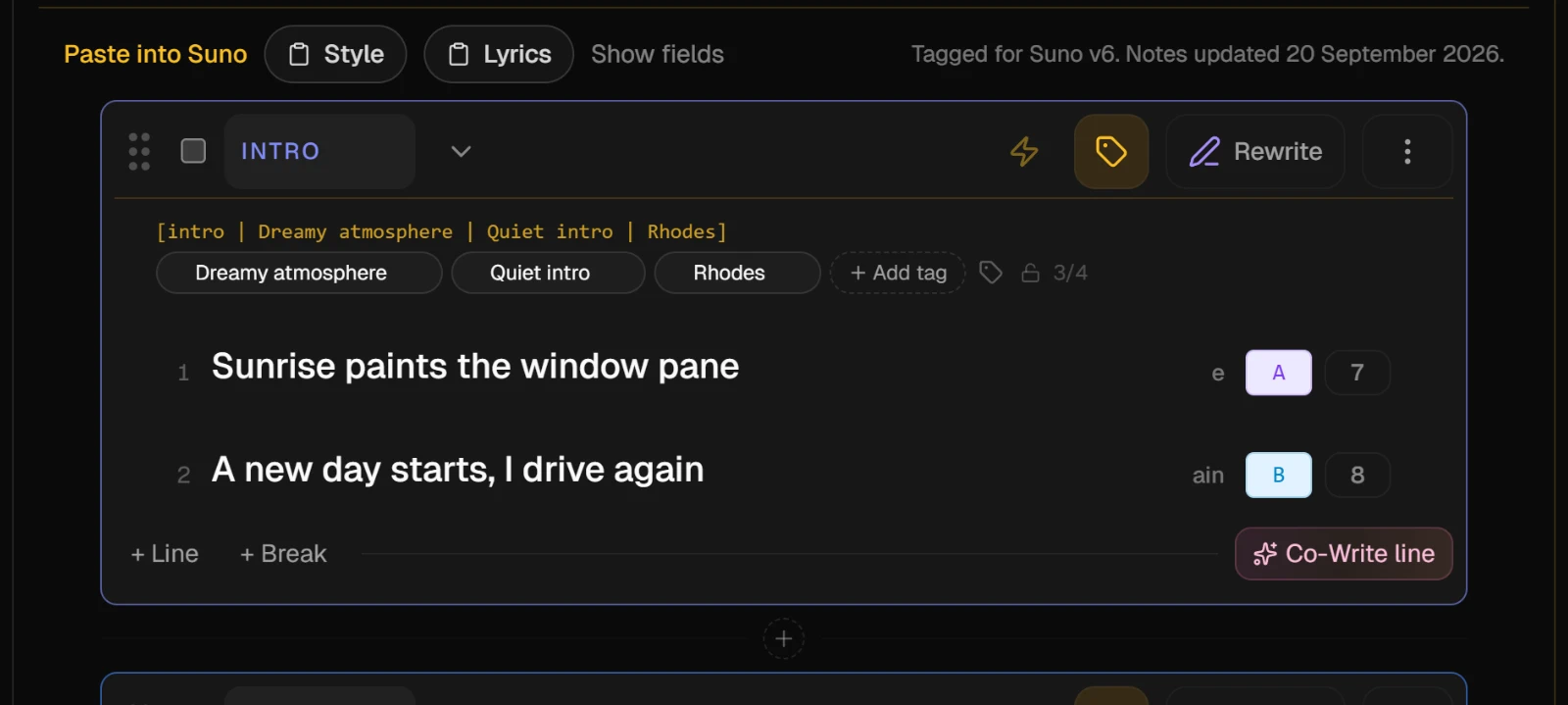
When the tags are in, the studio switches to the Sunofy tab and the first section opens its AI actions. Read it through. Every line can be edited, and the tags on each section can be changed by hand.
When it reads right, copy it into Suno from the Paste into Suno row above the song. Tag your song for Suno and Copy a song into Suno cover both.
TipIf the tagging does not finish, the lyrics are kept and a banner offers Tag it for Suno to try again. Not now closes it, and you can tag the song later from Sunofy.
When you already have lyrics
Switch the box to Optimize my lyrics and paste the whole song. Section markers such as [Verse 1] are kept. The line under the field takes an instruction if you have one. Press Tag my lyrics: no draft is written, the song is named from its chorus, and the tags go on when it opens.
If you paste lyrics into the idea field by mistake, the box asks first. Optimize them instead moves them to the right tab. Write a new song from them treats them as the idea.
When you want to start from an existing song
Switch to Import a song and the song search opens. Nothing is created until you import a song. Import a song's lyrics walks through it.
What Heho checks before it charges
Each song uses AI credits, and on the free plan the tagging uses one of the month's premium previews. Nothing is charged until Heho has checked your project slots, your balance and your previews. When you are close to one of those limits, a line under the box says what the next song takes and what is left.