An AI action that will not run has one of three causes: your balance is too low for it, your plan or this month's premium previews do not cover it, or the same action is still running. Heho shows which one it is, so read what is on screen before you press again.
1. Read the dialog
When credits or your plan stop an action, a dialog opens with the plan cards, and its title says why. A refused action uses no credits, and Maybe later closes the dialog.
| Title | Why | What to do |
|---|---|---|
| Current AI limit reached | Your balance is below what the action sets aside, which can happen before it reaches zero | Wait for the reset date, or move to a bigger plan |
| Monthly premium previews used | On Free, this month's premium previews are used | Wait for the reset date, or move to Pro or Studio |
| Unlock Synced captions and SRT export | Synced lyrics needs Pro or Studio | Move to Pro or Studio |
| Unlock and another tool's name | On Free, a premium tool shows this when your account's email address is not verified | Verify your email address |
From the idea box and the song wizard, the credit and premium preview titles talk about your next song and the month's free Suno taggings instead. Heho checks your balance and your previews there before anything is charged.
Adding a variant past your plan's limit shows a message instead of the dialog: "Variant limit reached on your plan. Upgrade to create more."
2. Check your balance
Open More at the bottom of the sidebar and choose Billing. Credits remaining and Reset date tell you whether the next action fits, and on Free the Premium previews box shows what is left this month.
Usage history on the same page marks a refused action Limit reached when credits were short, and Blocked when your plan or your previews stopped it.
NoteOn Free, credits and premium previews go to an account whose email address is verified. If every AI action is refused on a new account, open your profile from your avatar at the top right and verify your address.
3. Check whether it is still running
A section the Lyrics Assistant is rewriting or writing shows Working in its header, and its lines are locked until it finishes. In the studio header, a pill names each running job, such as Lyrics rewrite, Fix meter or Optimizing tags. Pressing the same action again on the same section does not start a second one.
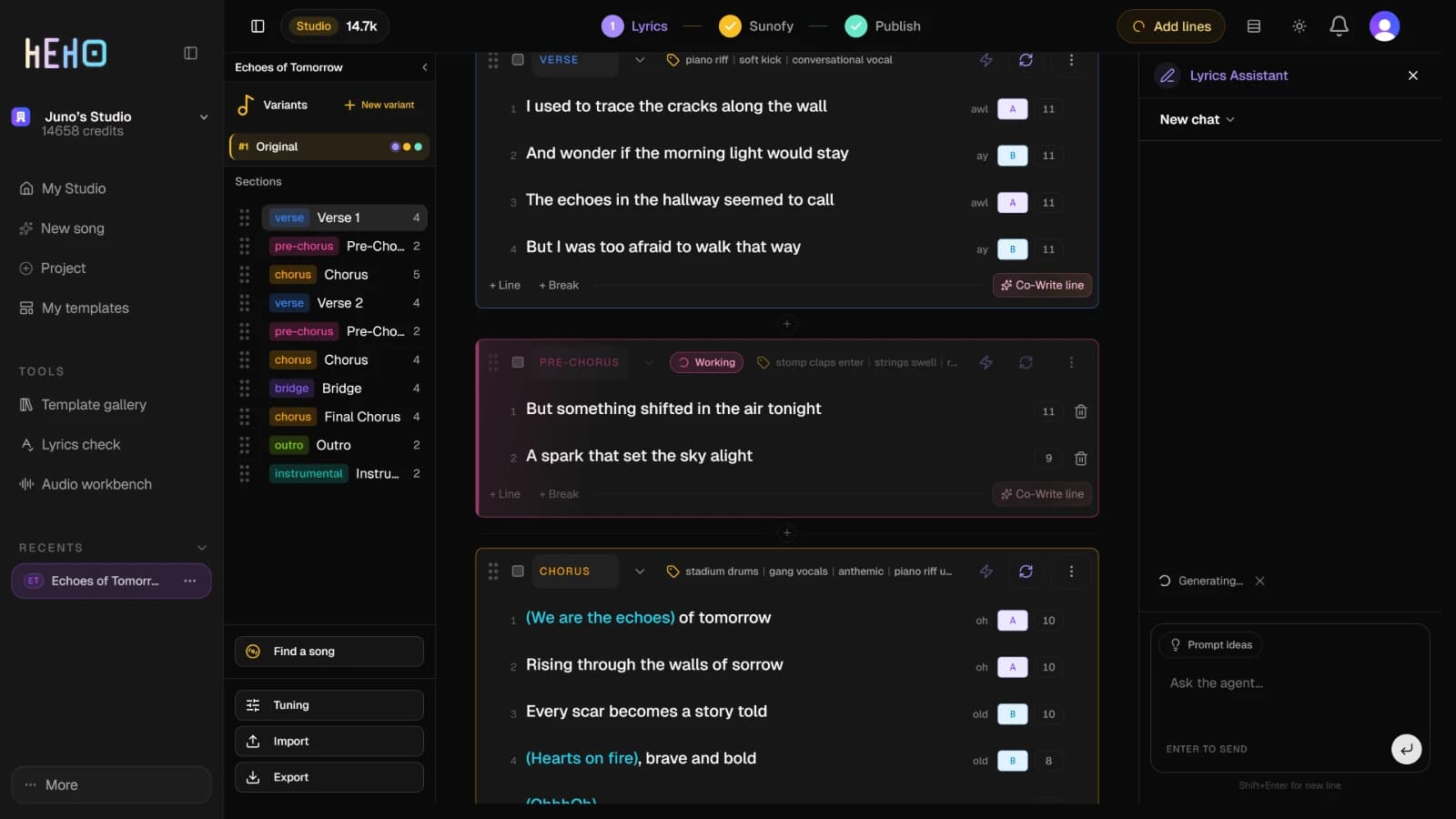
Keep the page open until it finishes. If you reload while an action is still being sent, or while the Suno Assistant is working, that action is lost and you run it again.
4. Run it once more if it failed
If an action ends with an error, run it once more. An action that fails before the AI starts gives back the credits it set aside, and on Free it does not use a premium preview. An action that was cut off, for example by closing the page, gives its credits back about an hour later and shows as Failed in Usage history.
If the second run fails the same way, contact support.
5. Contact support
Write to support@heho.ai if the same action keeps failing on the same song, a section stays on Working for much longer than usual, or your balance looks wrong after a failed action. Say which song, which action and roughly when.