The Lyrics tab is where the words get written and fixed. Each section card carries its own AI actions, and they return their work as a card you approve before it goes into the song. The steps below fix a verse whose lines run uneven; the table after them covers every other tool on the tab.
1. Find the line that runs long
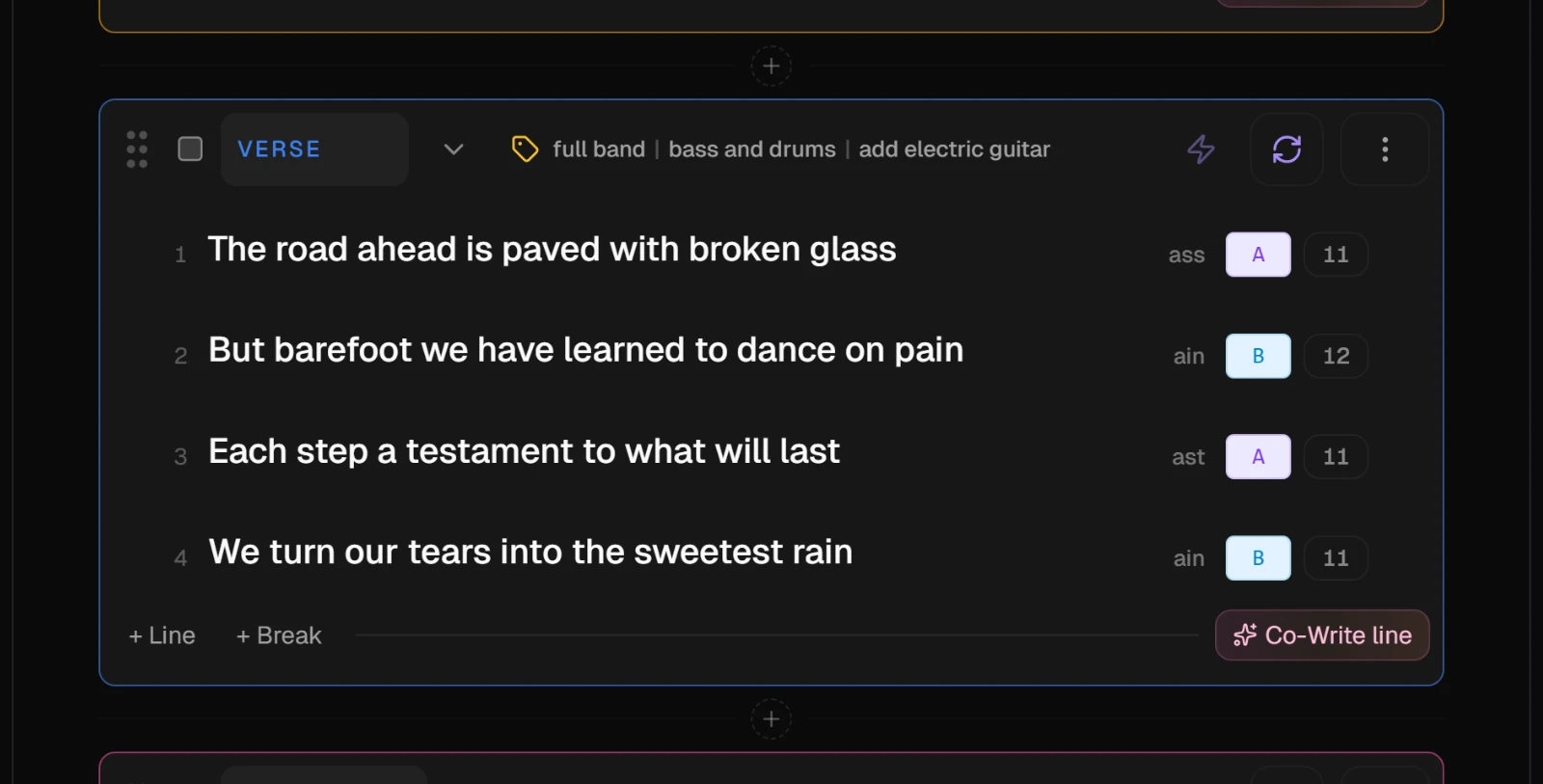
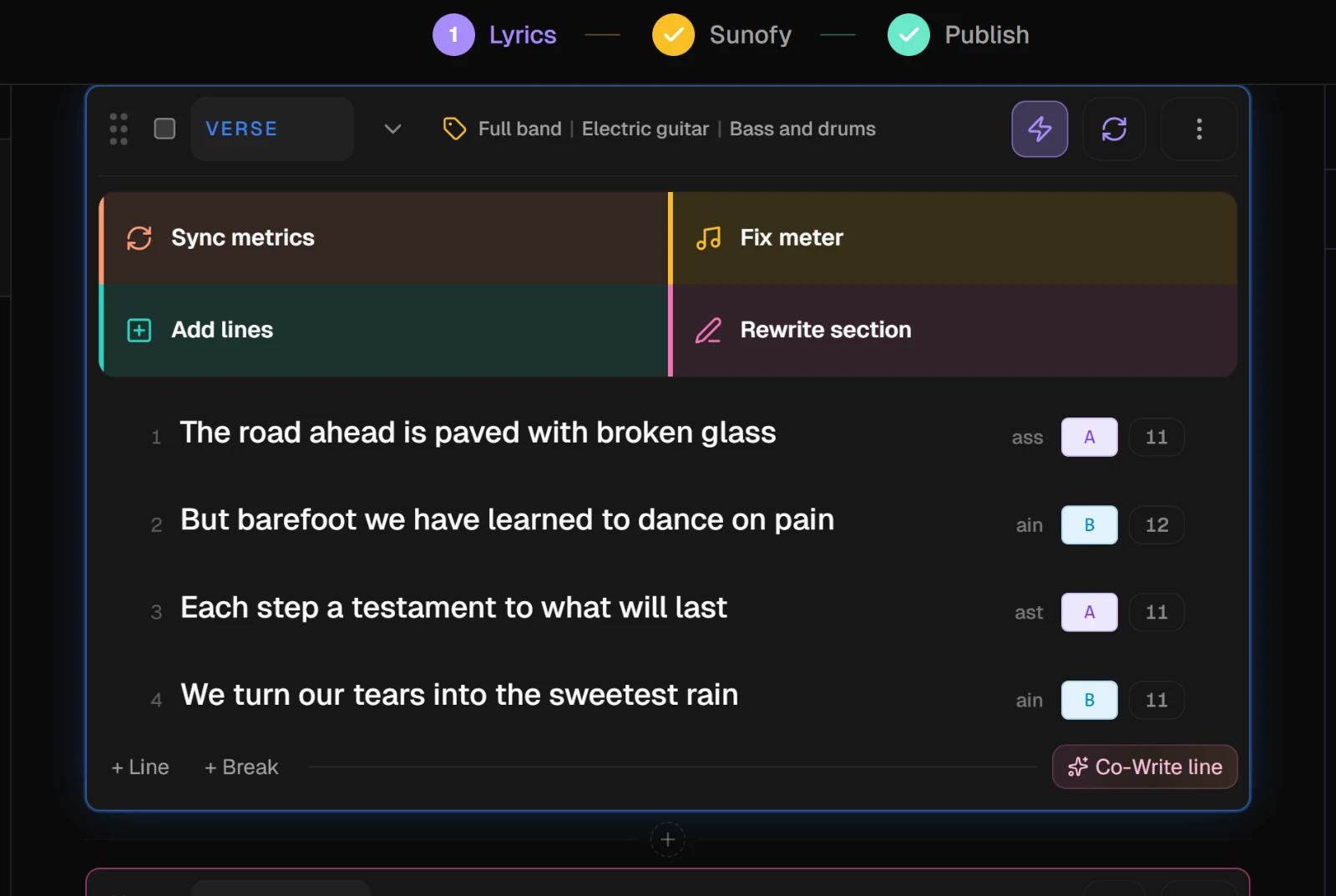
The number beside each line is its syllable count. In a verse sung to one melody, the lines should land close to each other. A line far longer than its neighbors is the one Suno is likely to rush.
2. Choose Fix meter
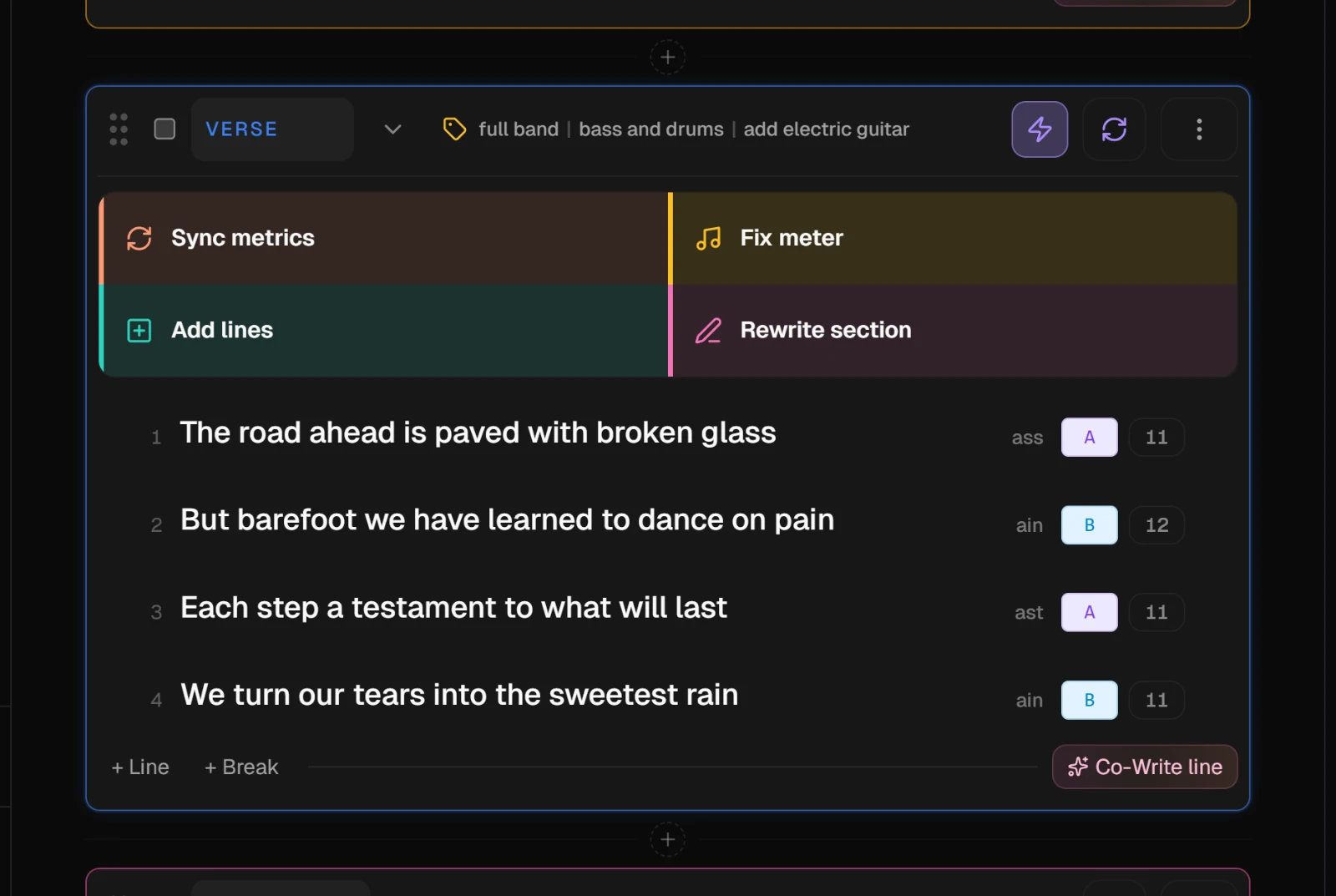
Press the lightning button at the right of the section's header, then Fix meter. The section locks and shows Working while the AI evens out the lines, trying to keep what they say and where they rhyme.
3. Review the card
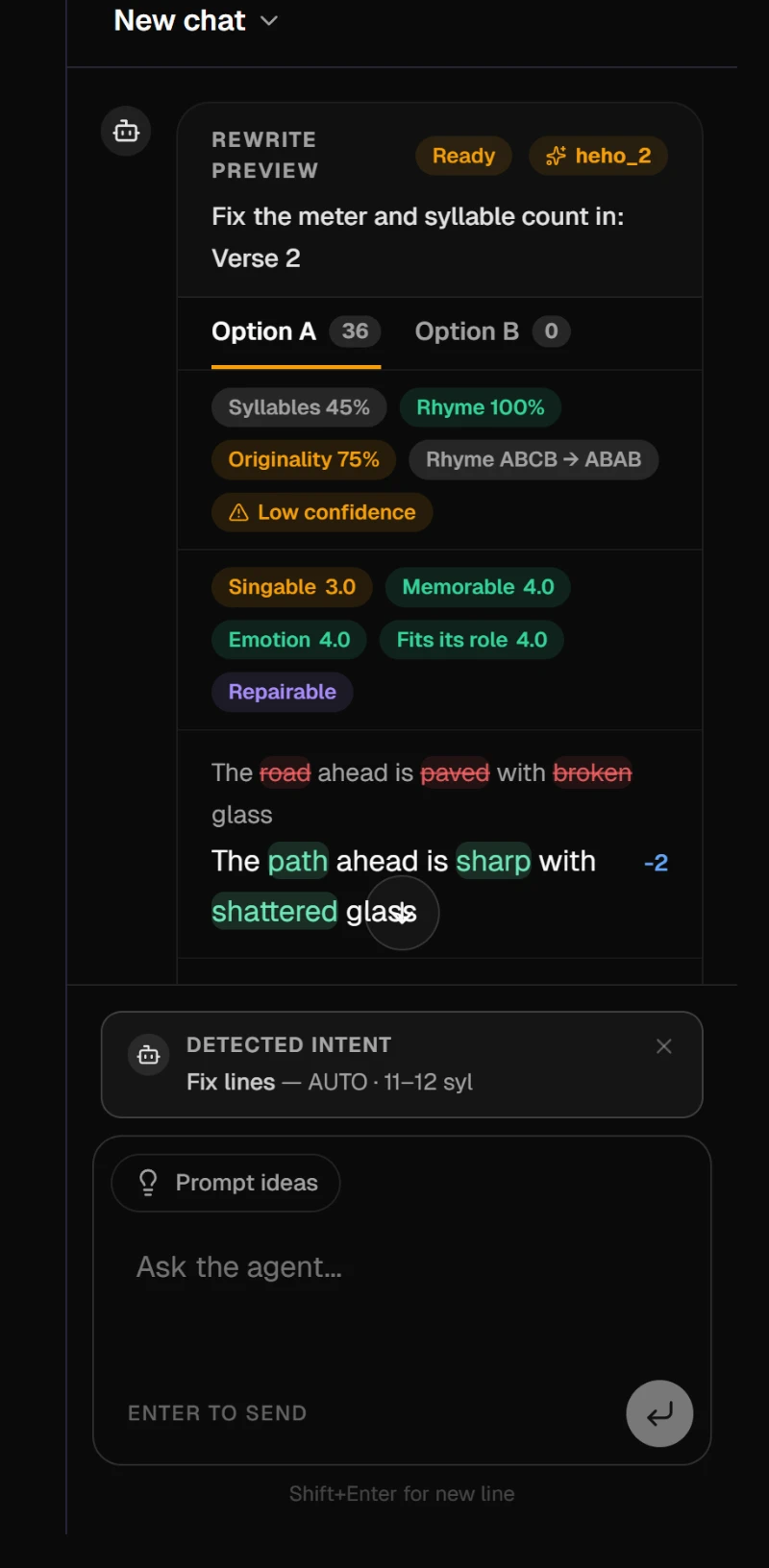
The result lands as a Rewrite preview card in the Lyrics Assistant panel. If it offers two options, look at Option B as well as Option A before you choose. Each changed line says how many syllables it gained or lost.
Press Approve, or Approve A or Approve B when there are two, to write it into the verse. Reject leaves the verse as it was.
4. Check the counts again
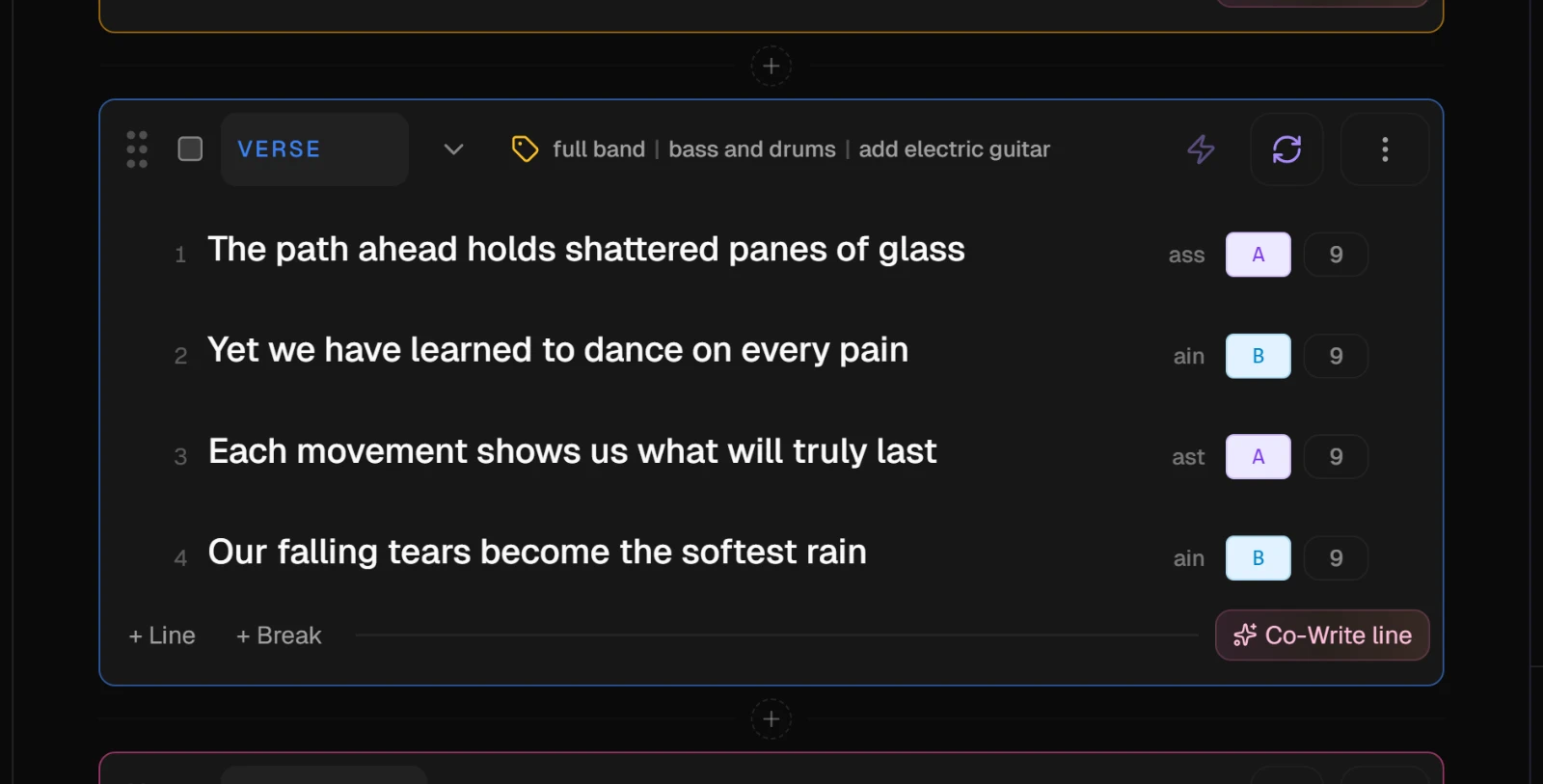
The verse now holds the approved lines, with their new counts beside them. Sing it through once at the song's tempo. The counts tell you the lines are even, not that they sit well on the melody.
5. Send someone straight to a section
Every section has an address made from its name, in lower case with dashes: Verse 2 is #verse-2. When two sections share a name, the second one's address gets -2 at the end. Add the address to the end of the song's link and the studio opens on that section, scrolled to the top of the window with its actions open. Crossing between Lyrics and Sunofy puts the address in the link for you.
Rename a section and its address changes with it. An old link still opens the song, just not on that section.
NoteOn each song, the first section with words opens its AI actions every time you arrive, on Lyrics and on Sunofy, until you run a section action anywhere in the song. After that the studio stops opening them by itself.
Everything else on the Lyrics tab
| Tool | Where it is | What it does |
|---|---|---|
| Sync metrics | A section's AI actions, or the refresh icon at the top of the editor for every section | Counts the syllables and marks the rhymes |
| Add lines | A section's AI actions | Writes more lines for the section, in its style, as a card to approve |
| Rewrite section | A section's AI actions | Rewrites the section from your guidance, with two takes to compare. See Review AI changes before they land |
| Co-Write line | Between two lines, when you rest the pointer there | Writes one to four lines for that exact gap |
| Co-write with AI | Inside an empty section | Drafts the whole section from your instructions |
| Lyrics Assistant | The panel on the right | A chat about the song; the changes it suggests come back as cards |
| Tuning | The left column of the studio | Sets the language, theme, words to use and avoid, and guidelines for every AI action on this song |
| Word explorer | Right-click any word | Synonyms, rhymes and translations that fit the line. See Mastering the Word Explorer |
| Smart Lyrics | Above the song | Swaps the cards for one page of text with rhymes and line suggestions. See Write in the Structured or Smart Lyrics view |
TipCtrl+Z undoes the last change, including one you approved from a card, and Ctrl+Y redoes it. The history lasts until you reload the page.
On the free plan, Fix meter and Rewrite section use the month's premium previews. The Lyrics Assistant chat does not.