One word in a line is not pulling its weight. Select it and right-click, and Heho suggests replacements written for that line and the lines around it, with the syllable count of each, so the meter holds.
1. Select the word and right-click
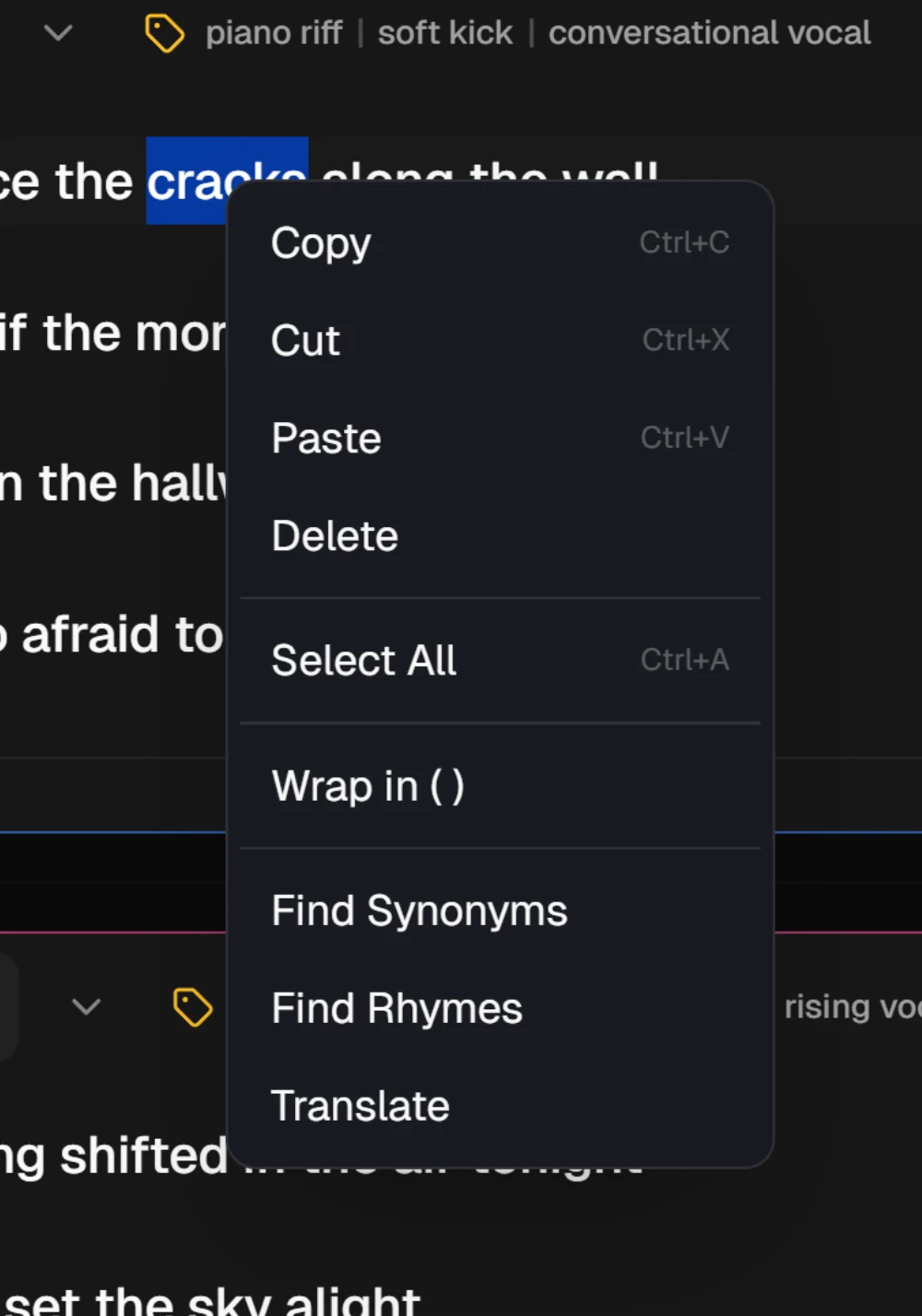
In the editor, select a word, or a few words, in a line. Then right-click the selection. Heho's own menu opens, and its last three items work on what you selected: Find Synonyms, Find Rhymes and Translate. With nothing selected, they are greyed out.
The menu works in the Structured view and in Smart Lyrics. In the Structured view, while the AI is working on a section, its lines show the browser's usual menu instead.
2. Pick a replacement
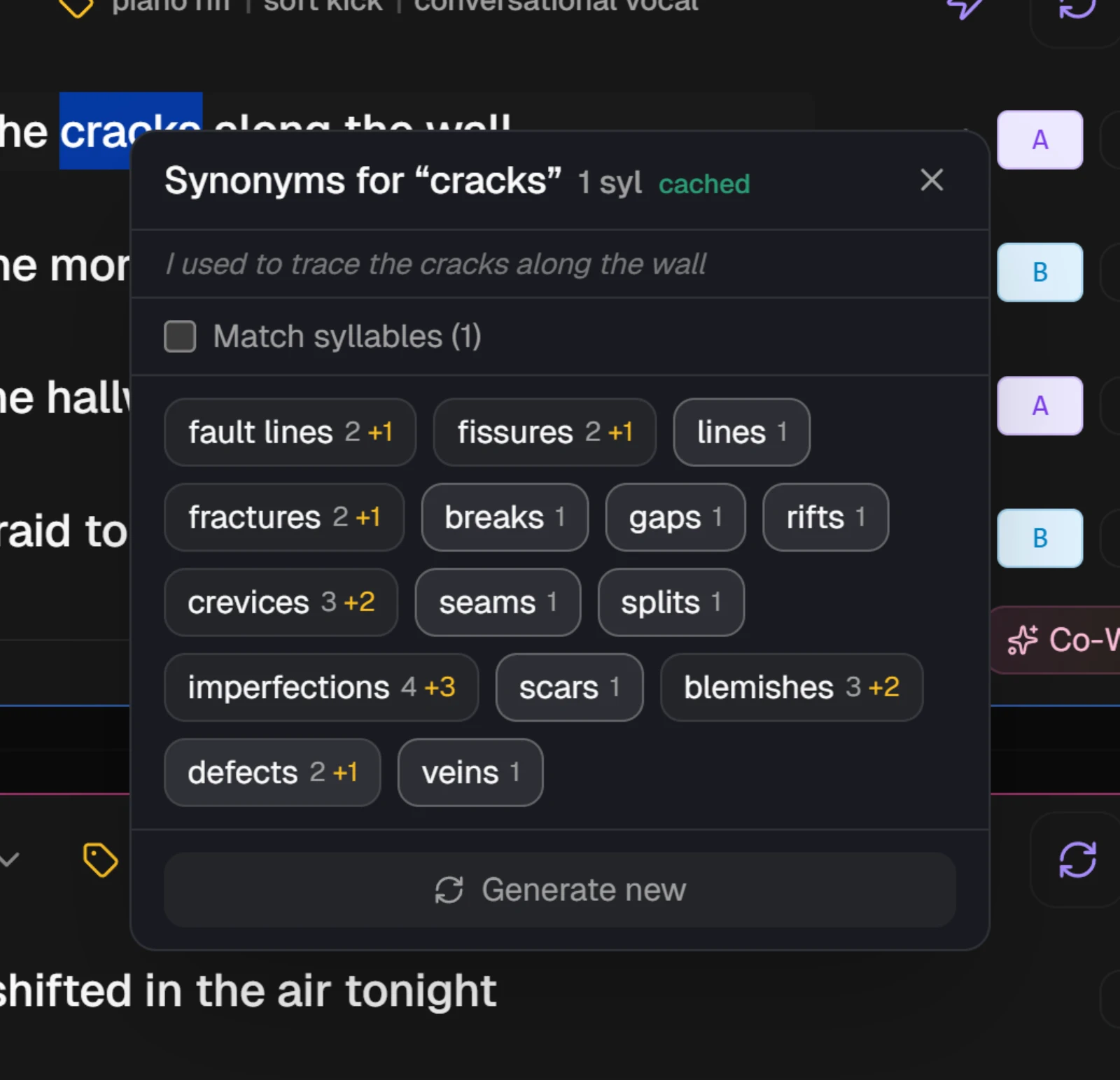
A panel opens by the word. Its header reads Synonyms for or Rhymes for, then your word and its syllable count, and the line it comes from sits under it.
Every suggestion shows its syllable count, and how far it is from your word when they differ, such as +1. Suggestions with the same count as your word are highlighted. Tick Match syllables (1), which carries your word's count, to hide the others.
Click a suggestion and it takes the place of your selection in the line. The suggestions come in the song's lyrics language, which you set under Tuning.
3. Ask for more
Generate new asks for a fresh list that leaves out every word you have already been shown. The earlier suggestions move below the new ones, dimmed but still clickable.
4. Translate a word or a phrase
Translate waits for you. Choose a language in the list beside Translate to, or press Go to keep the one shown: French when the song is in English, English otherwise. There is no syllable filter for translations.
Saved translations are kept per language: a language the word has been translated into before opens on its saved list, and any other language gets a new one. Known issue: the mobile app does not tell saved translations apart by language yet. There, a word translated before opens on that earlier list whichever language you pick. Press Generate New for a list in the language now shown.
5. Come back to a word later
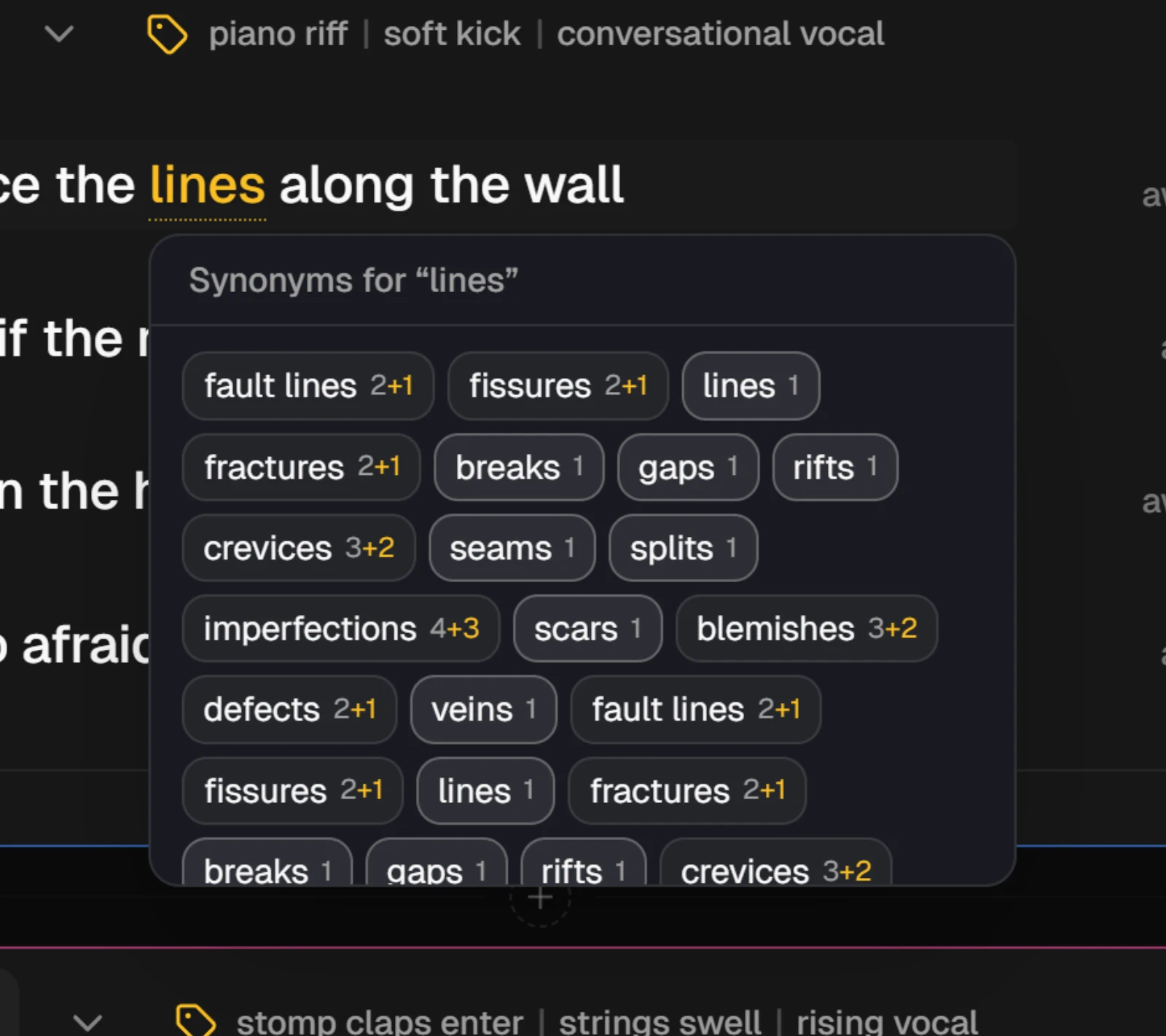
A word you have explored gets a dotted underline. Point at it to see its saved suggestions again, with a tab for each kind when you asked for more than one, and click one to swap it in. When you replace a word from the panel, the underline moves to the new word and keeps the list you picked from.
Right-click an underlined word to select it and open the menu again. The underline and the list on hover appear in the Structured view only.
Each new list, Generate new included, uses AI credits on every plan, and none of the free plan's premium previews. Lists are saved for your whole workspace. The next time anyone opens the same word, in the same language and for the same kind, the panel opens on the saved lists, marks them cached, and uses no credits.
NoteA saved list belongs to the word, not to the line it was made for. Open the same word in another line and you get the same suggestions. Press Generate new for ones written for the new line.
NoteIn the mobile app, long-press a word in a line to get Synonyms, Rhymes and Translate. There they need a Pro or Studio plan.