Once the words are right, two steps are left. Sunofy gets the song ready for Suno: tags on every section, a check, and the fields to paste. Publish helps you release what Suno made.
1. Move the song to Sunofy
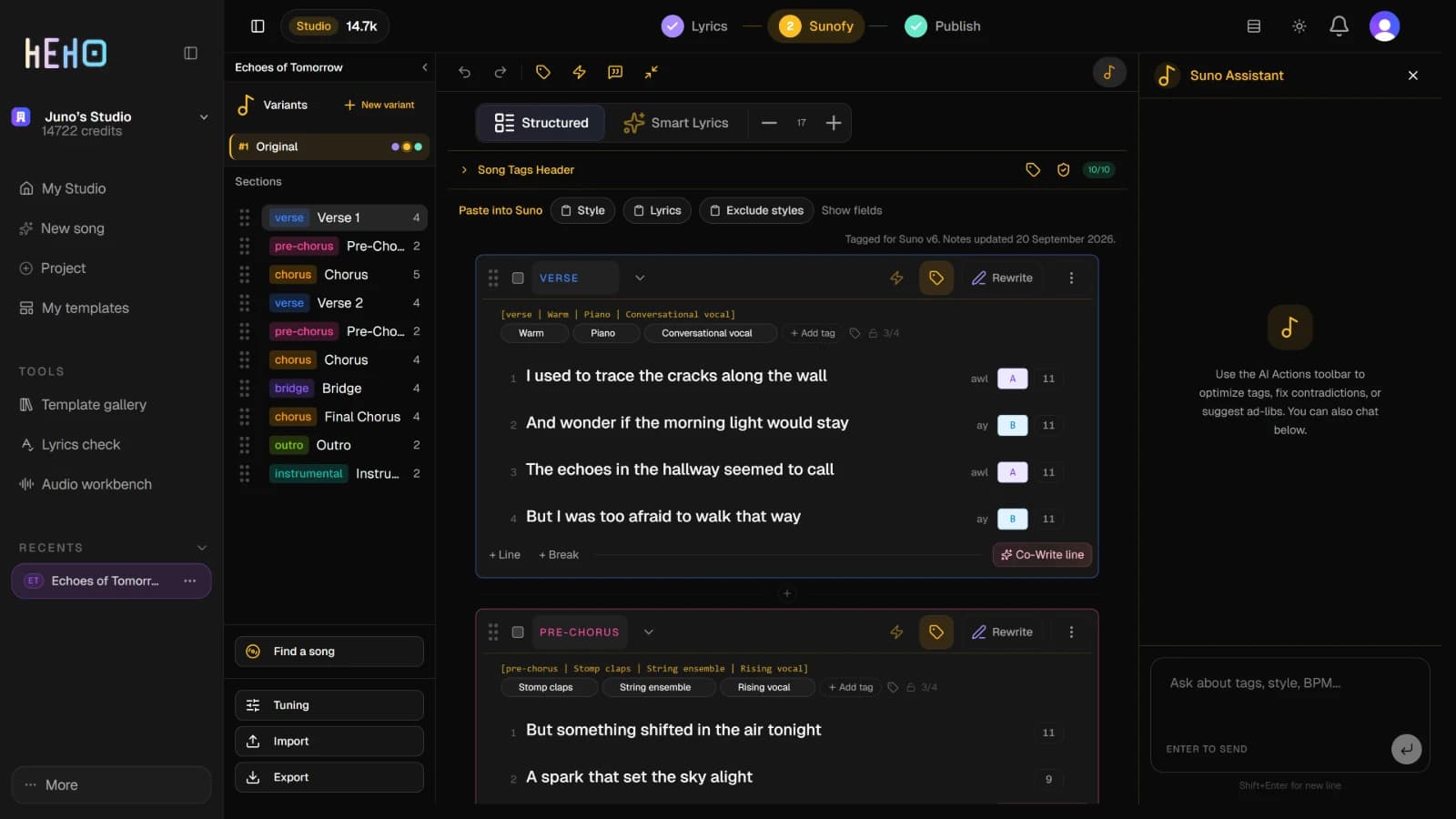
Press Sunofy at the top of the studio. The variant you are working on comes with you, words and all, and its sections now carry their Suno tags. If it has none yet, Tag your song for Suno shows how to add them.
2. Go back and forth between the words and the tags
On the Lyrics tab, each section's header shows its Suno tags on one line, or Add Suno tags when it has none. Click that line and the same section opens on Sunofy, with its actions open.
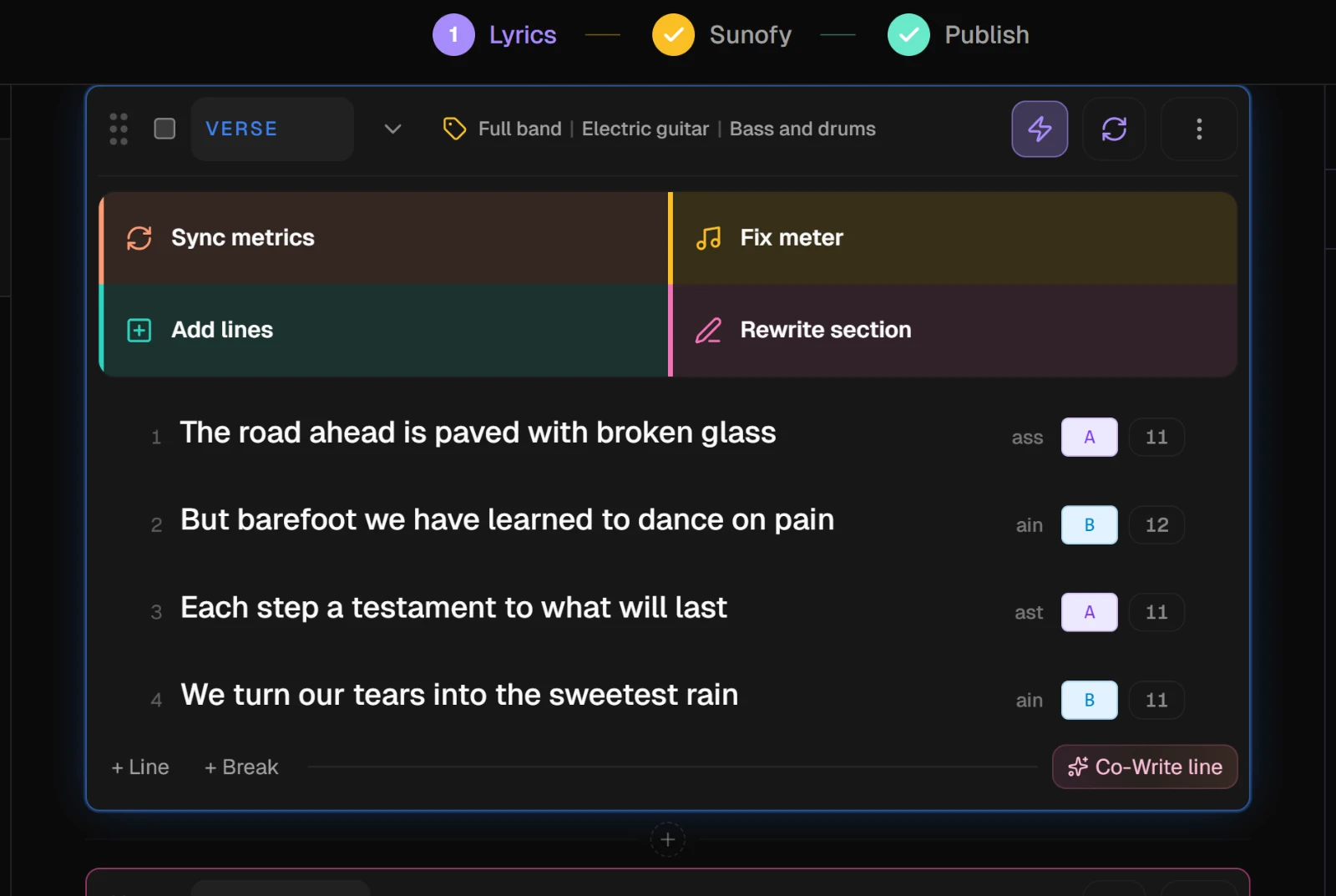
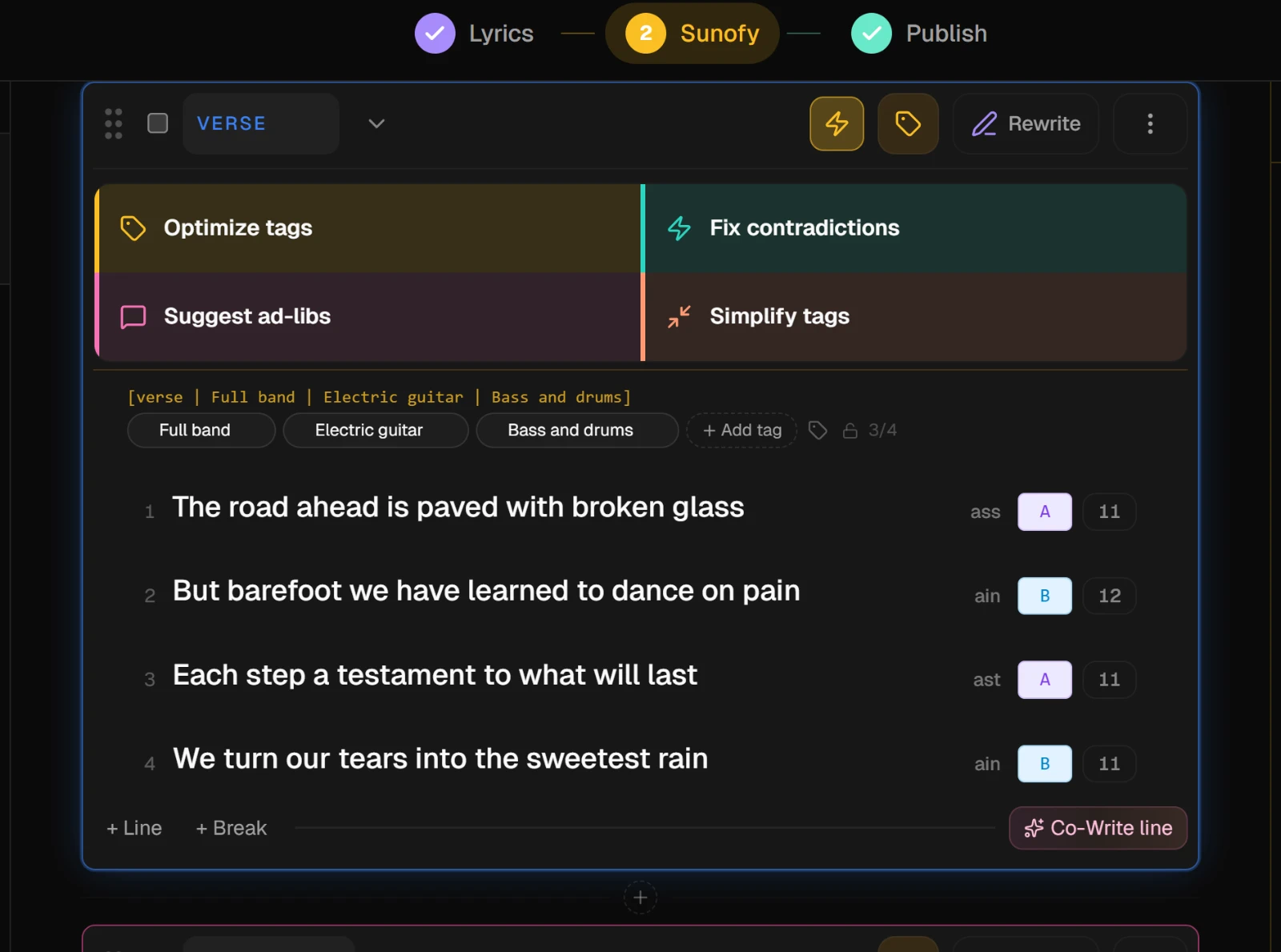
On Sunofy, Rewrite in a section's header takes you back to that section on the Lyrics tab, with its AI actions open. Both ways, the section's address, such as #verse-2, goes into the link in your address bar, so a reload or a shared link opens the same section.
3. Check it before Suno
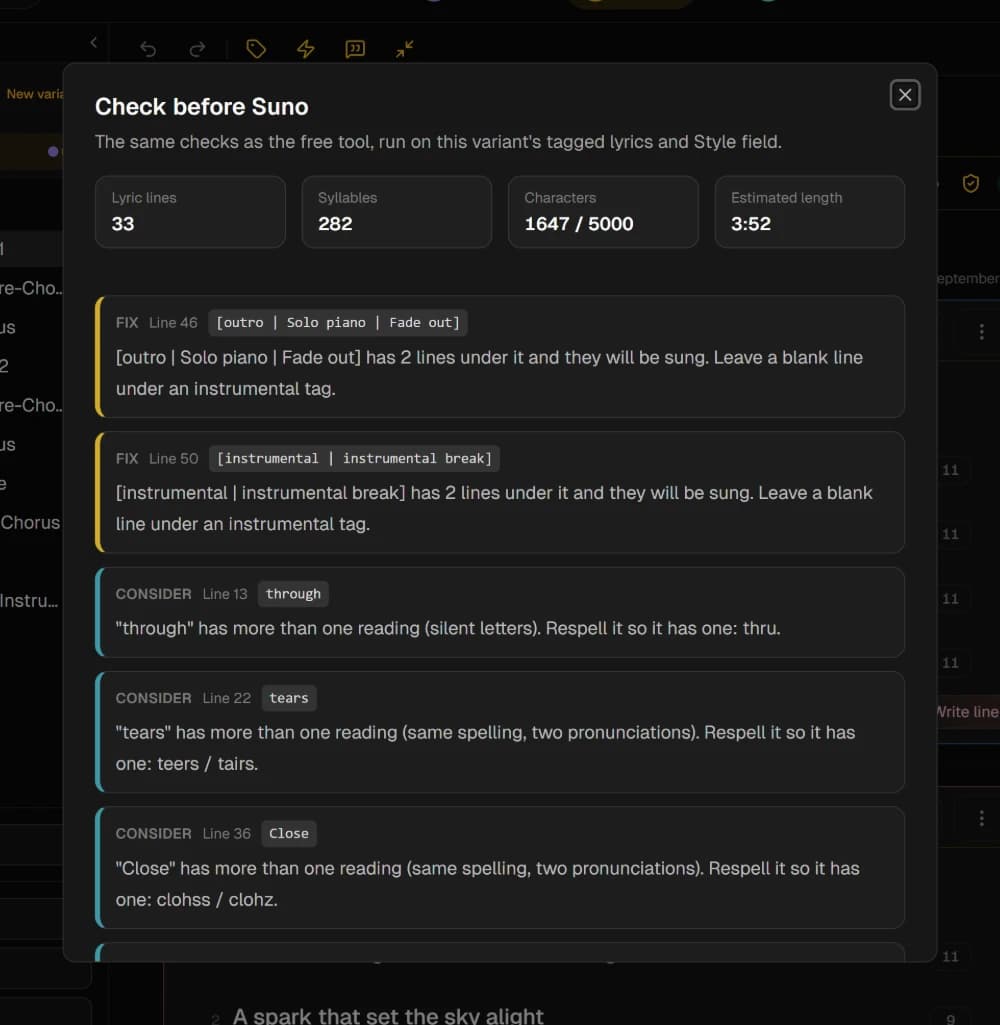
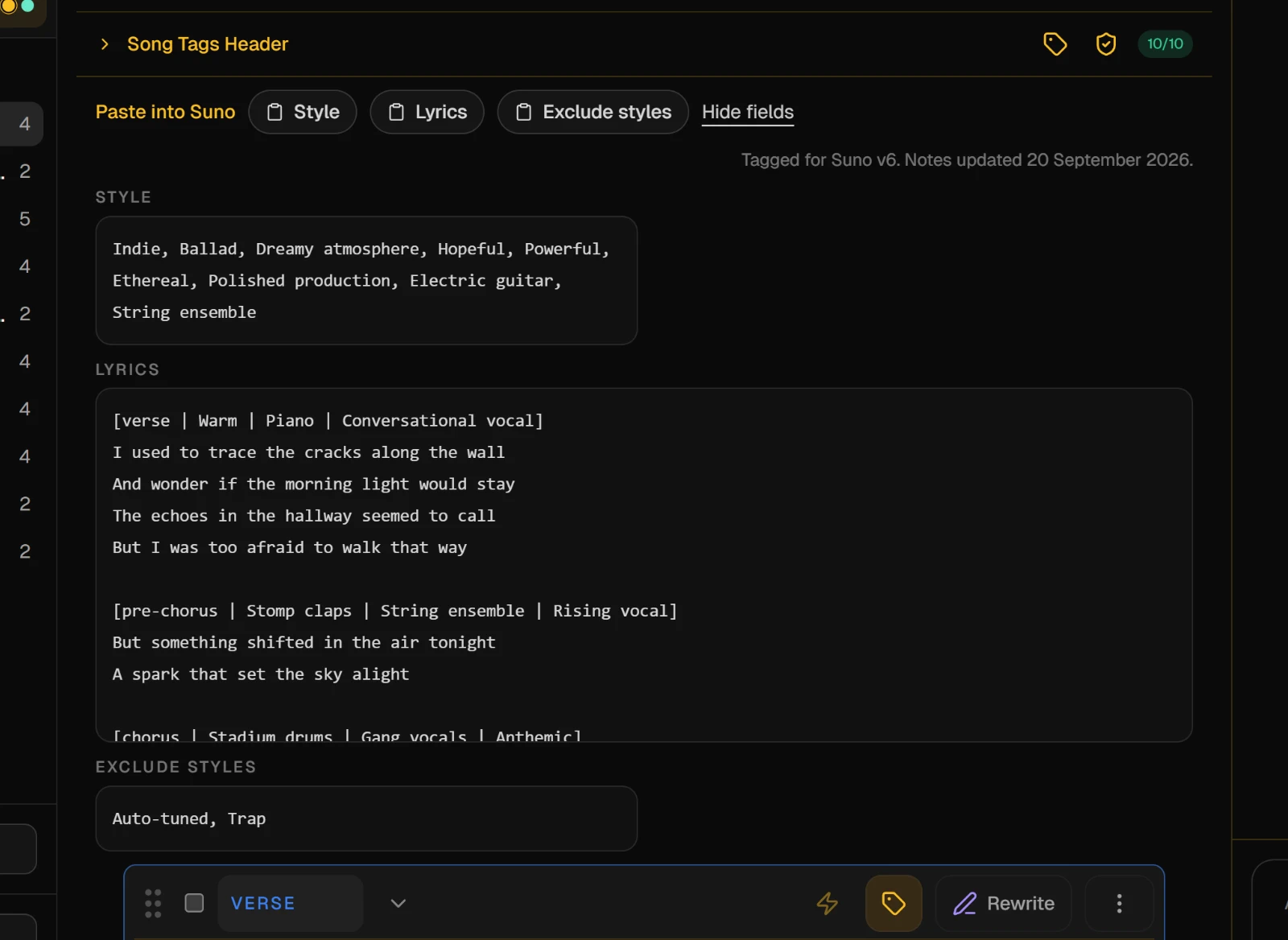
Press the shield icon in the Song Tags Header row, Check before Suno. It runs the same checks as the free lyrics check on this variant's tagged lyrics and Style field.
The top of the report shows four figures: Lyric lines, Syllables, Characters against Suno's limit, and Estimated length. Anything to fix is listed under them, most serious first. When the list is empty, it says so.
NoteThe check reads the sheet, not the song. It will tell you a line is too dense for Suno to sing, never whether the line is any good.
4. Copy it into Suno
The Paste into Suno row sits above the first section. Each button copies one field, named the way Suno names it:
- Style goes into Suno's Style box.
- Lyrics goes into Suno's Lyrics box, with every section's tags in square brackets over its lines.
- Exclude styles appears when the song has avoid tags, and goes into Suno's Exclude styles box.
Show fields opens all three so you can read them before you copy. The line at the right says which Suno version the tags were written for, and when those notes were last updated.
5. Build the release on Publish
When Suno has made a take you want to release, press Publish. It holds two tools.
- Synced lyrics lines the lyrics up with the finished audio. Choose MP3 to pick the song's audio, then Generate synced lyrics. Play it back, Export SRT for captions, or open the full-screen Showcase.
- Release Kit writes the release copy. Set the tone and audience, press Generate Release Kit, and you get title options, copy for each platform and thumbnail prompts. Generate Video Plan adds a storyboard, one scene per section.
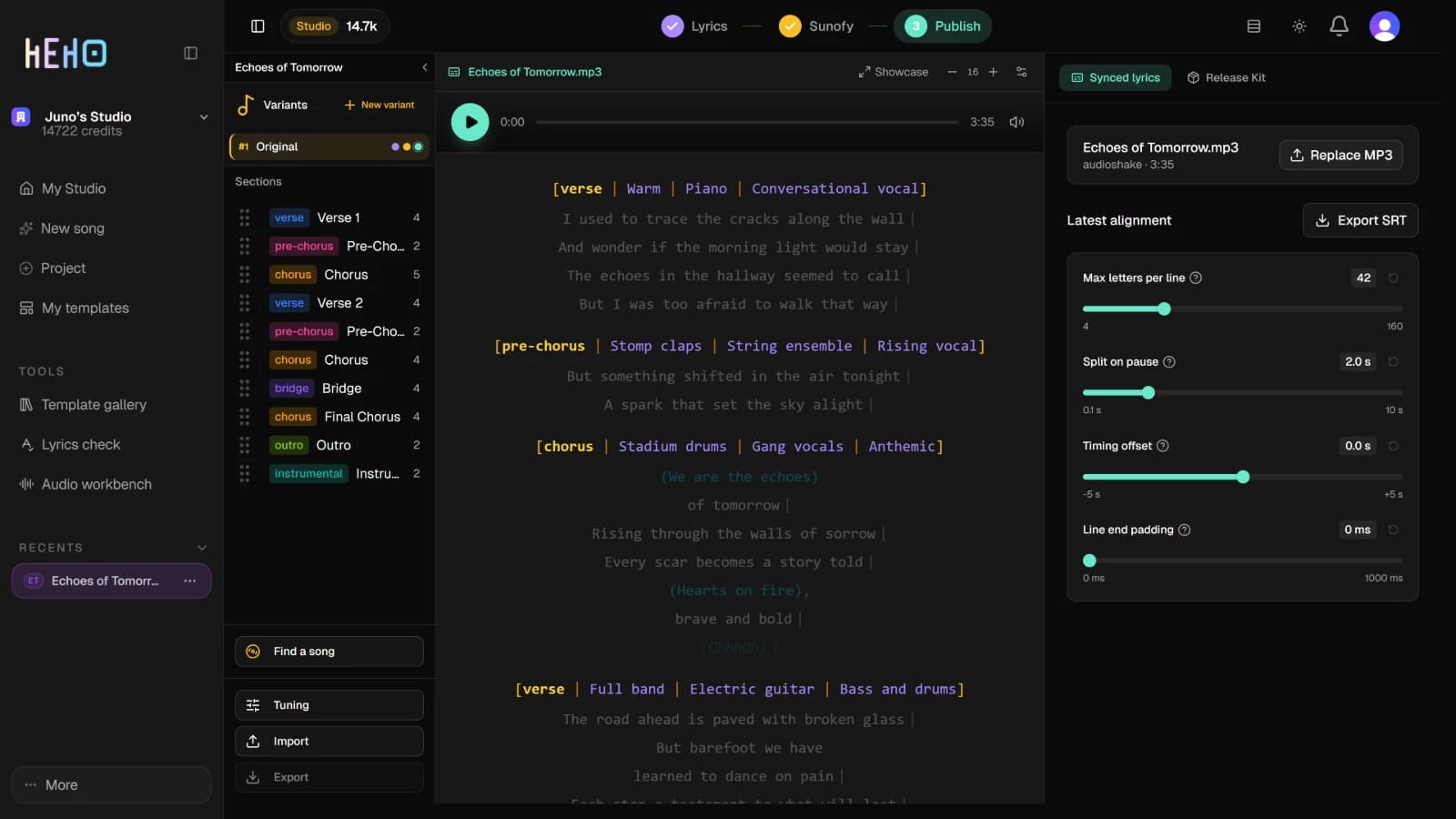
TipTo try the song another way without losing this one, rest the pointer on its variant in the Variants list on the left and press the copy icon, Duplicate. The copy keeps the words and the tags, and the dots beside each variant show how far it has come. New variant starts from a fresh layout instead: an empty Intro, Verse 1, Pre-Chorus, Chorus and Outro.
Copying and the check are free. The assistant, the release kit and the video plan use AI credits, and on the free plan they draw on the month's premium previews. Synced lyrics needs a Pro or Studio plan. On the free plan, Generate synced lyrics asks you to upgrade, and the MP3 is not uploaded.